How Do I Pair My Samsung Phone to My Car Step by Step
Pairing your Samsung phone to your car is easier than you think. This step-by-step guide walks you through Bluetooth connection, Android Auto setup, and wireless streaming so you can enjoy hands-free calling, music, and navigation on every drive. Whether you have a new Samsung Galaxy or an older model, you will find clear instructions that work for almost any vehicle.
Have you ever jumped into your car, dropped your Samsung phone in the cup holder, and wished it would just connect already? You are not alone. Millions of Samsung users face the same question every day: how do I pair my Samsung phone to my car. The good news is that it is usually a quick process, and once you do it once, your phone connects automatically every time you get in the car.
Whether you drive a sedan, an SUV, or a truck, modern vehicles make phone pairing simple. Most cars built after 2012 come with Bluetooth built right into the infotainment system. If your car is older, you can still connect using a Bluetooth adapter or a simple USB cable. This guide covers every method so you can find the one that works best for your setup.
By the end of this article, you will know exactly how to connect your Samsung Galaxy phone to your car. You will also learn tips for fixing common problems and making the most of your connected driving experience. Let us get started.
Key Takeaways
- Bluetooth is the most common way: Nearly every car made after 2010 supports Bluetooth phone pairing for calls and music.
- Android Auto adds smart features: It gives you Google Maps, voice commands, and a simplified screen while driving.
- Wireless and wired options both work: Wireless pairing is more convenient, but a USB cable can offer a more stable connection.
- Troubleshooting is simple: Most pairing issues are fixed by restarting Bluetooth, clearing old connections, or updating your phone.
- Compatibility matters: Check if your car supports the right Bluetooth profile (HFP for calls, A2DP for music) before pairing.
- Safety comes first: Always set up your connection while parked to avoid distractions on the road.
📑 Table of Contents
- What You Need Before You Start Pairing
- How to Pair Samsung Phone to Car via Bluetooth
- Using Android Auto for a Smarter Connection
- Wireless vs Wired Pairing: Which Is Better?
- Troubleshooting Common Samsung Car Pairing Problems
- Tips for a Better Samsung-Car Connection Experience
- Frequently Asked Questions
- Final Thoughts
What You Need Before You Start Pairing
Before you try to connect anything, make sure you have the basics ready. Skipping this step causes many people to struggle with pairing. Taking two minutes to prepare saves you a lot of frustration later.
Check Your Car’s Bluetooth Capability
Most cars today have built-in Bluetooth. Look for the Bluetooth icon on your car’s infotainment screen or check your vehicle manual. If your car does not have Bluetooth, you can still connect using an auxiliary cable or a Bluetooth FM transmitter. These small devices plug into your car’s audio system and create a wireless link to your phone.
Make Sure Your Samsung Phone Is Ready
Your Samsung phone needs a few things turned on before it can pair. First, make sure Bluetooth is enabled. Go to Settings > Connections > Bluetooth and toggle it on. Also, check that your phone is updated. Older Samsung models sometimes have trouble connecting if the software is out of date.
Here is a quick checklist to go through before pairing:
- Bluetooth is turned on in your phone settings
- Your car ignition is on (or the infotainment system is powered)
- Your phone battery is at least 20%
- You are in a quiet environment (this helps the car find your phone faster)
- You have removed any old or unused car connections from your phone
How to Pair Samsung Phone to Car via Bluetooth
Bluetooth pairing is the most common method. It works with almost every car and Samsung phone combination. Here is the full step-by-step process.
Step 1: Turn on Bluetooth on Your Phone
Swipe down from the top of your Samsung screen to open the quick settings panel. Tap the Bluetooth icon to turn it on. You can also go to Settings > Connections > Bluetooth for more options. When Bluetooth is on, your phone starts scanning for nearby devices.
Step 2: Enable Pairing Mode on Your Car
Every car handles this differently. Usually, you press the Phone or Bluetooth button on your steering wheel or infotainment screen. Some cars have a dedicated Pair or Connect button. Your car should now show a message saying it is ready to pair or searching for devices.
Step 3: Find Your Car on Your Samsung Phone
On your Samsung phone, go to Settings > Connections > Bluetooth. Under the list of available devices, look for your car’s name. It might say something like My Car BT or the car brand name. Tap on it to start the pairing process.
Step 4: Confirm the Pairing Code
Your car screen and your phone will show a matching number or code. This is a security step. Make sure the numbers match, then tap Pair on your phone and Confirm on your car screen. Within a few seconds, the connection is established.
Step 5: Test the Connection
Once paired, try playing music from your phone. You should hear it through your car speakers. Also, try making a hands-free call to make sure the microphone works. If both work, you are all set. Your Samsung phone will now automatically connect whenever you get in the car.
Quick Tip: If your phone does not find your car, restart both Bluetooth and your car infotainment system. This fixes the issue about 80% of the time.
Using Android Auto for a Smarter Connection
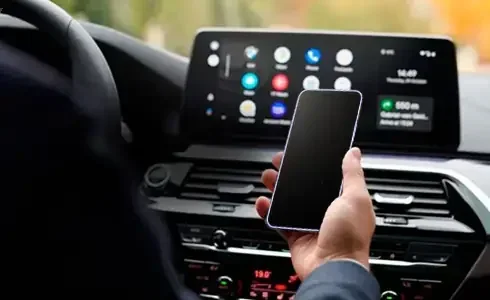
Bluetooth is great for calls and music, but Android Auto takes your Samsung-car connection to the next level. It gives you a simplified, driver-friendly interface on your car screen. You get Google Maps navigation, voice commands, and access to your favorite apps safely.
What Is Android Auto?
Android Auto is a feature from Google designed specifically for driving. It mirrors selected apps from your Samsung phone onto your car’s display. You can use Google Maps for navigation, listen to Spotify or YouTube Music, and send messages using voice commands. Everything is designed to keep your eyes on the road.
How to Set Up Android Auto
Setting up Android Auto is straightforward. First, download the Android Auto app from the Google Play Store on your Samsung phone. Open the app and follow the on-screen setup instructions. You will need to grant a few permissions for location access and notifications.
Once the app is ready, connect your phone to your car using a USB cable. Your car should recognize Android Auto and launch it automatically. If your car supports wireless Android Auto, you can connect without any cable at all. Just make sure both your phone and car support this feature.
Benefits of Using Android Auto While Driving
- Voice commands: Say “Hey Google” to make calls, send texts, or get directions without touching your phone
- Smart navigation: Google Maps gives you real-time traffic updates and alternate routes
- Music access: Switch between Spotify, YouTube Music, Pandora, and other apps easily
- Reduced distractions: The simplified interface shows only driving-relevant information
- Seamless Samsung integration: Samsung phones work especially well with Android Auto
Not all cars support Android Auto natively. If your car does not have it built in, you can use an Android Auto-compatible head unit or a smartphone mount with a cable. Many aftermarket car stereos now include full Android Auto support.
Wireless vs Wired Pairing: Which Is Better?
When you learn how do I pair my Samsung phone to my car, you will quickly realize there are two main ways to connect: wireless Bluetooth or a wired USB connection. Both have their strengths. Let us compare them so you can decide what works best for you.
Wireless Bluetooth Pairing
Wireless Bluetooth is the most popular choice because it is convenient. You pair once, and your phone connects automatically every time you get in the car. No cables to plug in, no clutter on your dashboard. You can also stream music, make calls, and use voice assistants wirelessly.
The downside is that Bluetooth connections can sometimes drop, especially in areas with a lot of electronic interference. Bluetooth also uses more battery on your phone than a wired connection. For most daily commutes and short trips, wireless Bluetooth is more than enough.
Wired USB Pairing
A USB cable connection is more stable and reliable. You plug your Samsung phone directly into your car’s USB port, and the connection is almost always instant. Wired connections also charge your phone while you drive, which is a big plus if your battery is low.
USB pairing is especially useful for Android Auto. Many cars require a USB cable for Android Auto to work properly. The connection is faster and more consistent than wireless Android Auto. The trade-off is that you need to keep a cable in your car and plug it in every time.
Comparison Table
| Feature | Wireless Bluetooth | Wired USB |
|---|---|---|
| Convenience | Very high | Moderate |
| Connection stability | Good | Excellent |
| Phone charging | No | Yes |
| Android Auto support | Wireless Android Auto only | Full support |
| Battery usage | Higher | Lower |
| Setup effort | One-time pairing | Plug in every time |
| Best for | Daily commuting | Long trips and navigation |
For most Samsung users, wireless Bluetooth is the go-to option. But if you use Android Auto a lot or need a rock-solid connection, keep a USB cable handy. Many people use both methods depending on the situation.
Troubleshooting Common Samsung Car Pairing Problems
Even when you follow every step correctly, sometimes the connection does not work. This is frustrating, but it is also very common. Most pairing problems have simple fixes. Here are the issues you are most likely to run into and how to solve them.
Phone Does Not Find the Car
If your Samsung phone cannot find your car in the Bluetooth list, try this. First, turn Bluetooth off and back on again. Next, restart your car’s infotainment system. On most cars, you can do this by holding the power button for 10 seconds. If that does not work, delete old Bluetooth connections from your phone and try again.
Paired but No Sound
Sometimes your phone connects to the car but you cannot hear music or calls. This usually happens because the audio profile is not selected correctly. On your Samsung phone, go to Settings > Connections > Bluetooth, find your car, and tap the gear icon next to it. Make sure both Phone audio and Media audio are turned on.
Connection Keeps Dropping
An unstable connection can be annoying. This often happens when your phone is too far from the car’s antenna or when there are many wireless signals in the area. Try moving your phone closer to the center console. Also, make sure no other device is connected to your car’s Bluetooth at the same time. Most cars only support one active phone connection.
Android Auto Keeps Disconnecting
If Android Auto disconnects frequently, clear the app cache. Go to Settings > Apps > Android Auto > Storage and tap Clear Cache. Also, try using a different USB cable. Cheap or damaged cables are a common cause of Android Auto problems. A high-quality cable makes a big difference.
Expert Insight: Samsung phone users should also check for software updates regularly. Go to Settings > Software update > Download and install. Updates often include fixes for Bluetooth connectivity issues and improve compatibility with car systems.
Tips for a Better Samsung-Car Connection Experience
Once you get your Samsung phone paired to your car, there are several things you can do to improve the experience. These small changes make a big difference in how smoothly everything works every day.
Set Up Your Phone Before You Drive
Always pair and test your connection while parked. Setting up Bluetooth while driving is dangerous and, in many places, illegal. Take a minute before you start the engine to make sure everything is connected properly. This habit keeps you safe and avoids frustration on the road.
Keep Your Phone and Car Software Updated
Samsung regularly releases updates that improve Bluetooth performance and fix bugs. Similarly, many car manufacturers push infotainment updates that add new features and fix connection issues. Keeping both your phone and car updated ensures the best compatibility.
Delete Old Connections Regularly
If you have ever borrowed someone else’s car or used a rental, those old connections can clutter your Bluetooth list. Go to Settings > Connections > Bluetooth and remove any devices you no longer use. A clean Bluetooth list helps your phone connect faster and more reliably.
Use Voice Commands While Driving
One of the biggest benefits of connecting your Samsung phone to your car is hands-free operation. Use Bixby or Google Assistant to make calls, send texts, and get directions. Say “Hey Google” or press the voice button on your steering wheel. This keeps your hands on the wheel and your eyes on the road.
Optimize Your Car’s Audio Settings
Every car infotainment system has audio settings you can tweak. Adjust the equalizer, balance, and fade to get the best sound from your Samsung phone. Some cars also have a media volume setting that is separate from the call volume. Check both to make sure your music sounds great and your calls are clear.
Consider a Bluetooth Adapter for Older Cars
If your car does not have Bluetooth built in, do not worry. A Bluetooth FM transmitter or a Bluetooth car adapter can add wireless connectivity to almost any vehicle. These devices plug into your car’s cigarette lighter or USB port and create a Bluetooth connection. They are affordable and easy to set up.
Key Takeaways:
- Always prepare your phone and car before pairing to save time
- Bluetooth is the standard, but Android Auto adds smart features
- Wireless is convenient, wired is stable, and both have their place
- Most pairing problems are fixed with a simple restart or settings check
- Keep your Samsung phone and car software updated for the best experience
- Voice commands make your connected driving safer and more convenient
Frequently Asked Questions
Why won’t my Samsung phone connect to my car via Bluetooth?
There are several reasons this can happen. First, make sure Bluetooth is turned on in both your phone and your car. Restart both devices and try again. If the problem continues, remove the old car connection from your phone’s Bluetooth list and pair fresh. Also check that your phone is not connected to another device, as most cars only allow one active connection at a time.
Can I connect my Samsung phone to any car?
Most cars made after 2010 support Bluetooth, which means they can connect to your Samsung phone. If your car does not have Bluetooth, you can use a Bluetooth FM transmitter or a Bluetooth adapter. These small devices plug into your car and add wireless connectivity. Almost any car can be made compatible with a Samsung phone connection.
Is Android Auto the same as Bluetooth pairing?
No, Android Auto is more than just Bluetooth. Bluetooth handles calls and basic music streaming. Android Auto gives you a full smart interface on your car screen with navigation, voice commands, and app access. You can use Android Auto over a USB cable or wirelessly if your car supports it. Both Bluetooth and Android Auto work together to give you the best connected driving experience.
How do I disconnect my Samsung phone from my car?
You can disconnect manually by going to Settings > Connections > Bluetooth on your Samsung phone, finding your car, and tapping the gear icon. Select Unpair to remove the connection. Your phone will also automatically disconnect when you drive away from your car if the Bluetooth connection range is exceeded.
Why does my music keep pausing when I get a call?
This is normal behavior. When you get a call, your car’s Bluetooth system pauses media playback so you can hear the incoming call clearly. After the call ends, music should resume automatically. If it does not, check that media audio is enabled in your Bluetooth settings for the car connection.
Can I connect multiple Samsung phones to my car?
Most cars can store multiple paired devices. When you enter the car, it usually connects to the last phone used or the one set as the primary device. You can switch between phones by going to your car’s Bluetooth settings and selecting a different device. However, only one phone can stream audio at a time.
Final Thoughts
Learning how do I pair my Samsung phone to my car is one of the simplest upgrades you can make to your daily driving routine. Once connected, you get hands-free calling, music streaming, GPS navigation, and voice commands all working together. It makes every drive safer, more convenient, and more enjoyable.
The process is the same whether you use Bluetooth, Android Auto, or a USB cable. Start with the basics, follow the steps in this guide, and you will be connected in minutes. If you run into any issues, the troubleshooting tips above will help you get back on track quickly.
Take a few minutes today to set up your connection. Once it is done, you will wonder how you ever drove without it. Your Samsung phone and your car were made to work together, and now you know exactly how to make it happen. Happy driving!