How Do I Set My Device to Automatic Time on Mobile
How Do I Set My Device to Automatic Time? is an essential topic that provides valuable insights.
Have you ever glanced at your phone and noticed the time was wrong? Maybe you traveled to a new city and forgot to adjust your clock. Or perhaps your device just drifted a few minutes off over weeks of use. Whatever the reason, setting your device to automatic time solves this problem fast. This article covers everything you need to know about automatic time on mobile devices.
We will walk through Android steps, iPhone steps, and even how this works inside your car. You will also find quick fixes for common problems. The goal is simple: help you stop worrying about your clock and start trusting your device. Let us dive in.
Key Takeaways
- Automatic time sync saves you from manual errors: Your device pulls the correct time from cellular or Wi-Fi networks without you lifting a finger.
- Both Android and iPhone make this easy: A simple toggle in settings activates network-based time zone detection.
- Automotive infotainment systems benefit too: Car GPS units and smartwatches also rely on automatic time sync for accurate navigation.
- Travel becomes seamless: When you cross time zones, your phone updates the clock instantly with automatic time zone detection.
- Troubleshooting is straightforward: Most sync issues fix quickly with a network reset or setting toggle.
📑 Table of Contents
- What Is Automatic Time on Mobile?
- Why Setting Automatic Time Matters
- How to Set Automatic Time on Android Devices
- How to Set Automatic Time on iPhone
- Automatic Time in Automotive Infotainment Systems
- Troubleshooting Common Issues with Automatic Time
- Pro Tips for Keeping Your Mobile Clock Perfect
- Conclusion
What Is Automatic Time on Mobile?
When you turn on automatic time on mobile, your phone connects to a network server to fetch the current time. This process is called network time synchronization. Your device uses either your cellular connection or Wi-Fi to reach a time server. These servers follow a standard called the Network Time Protocol, or NTP. NTP keeps billions of devices around the world synced to the same accurate clock.
Your phone also uses this connection to detect your time zone automatically. So if you fly from New York to Los Angeles, your device updates the clock without you doing anything. This is called automatic time zone detection. It relies on your cellular network or GPS signals to figure out where you are.
Many people do not realize how often this feature helps. It keeps your calendar events on schedule. It ensures your alarms go off at the right moment. And it makes sure your navigation apps show accurate arrival times. For drivers, automatic clock update in car infotainment systems works the same way.
Why Setting Automatic Time Matters
You might wonder why this small setting matters so much. After all, can you not just set the time manually? The truth is, manual time setting leads to problems. Here is why automatic time on mobile is worth enabling.
Accuracy You Can Trust
Manual clocks drift. Over days and weeks, your phone clock can lose or gain several minutes. Network time servers are far more accurate than any internal clock chip. By syncing automatically, your device stays precise to within milliseconds of the official time.
Seamless Travel Experience
If you travel across time zones, automatic sync is a lifesaver. You do not need to search for local time or remember to change your clock. Your phone handles it all. This is especially useful for drivers who cross state or even country borders during long trips.
Smart Device Coordination
Many devices work together in your daily life. Your phone, smartwatch, car display, and home assistant all share time data. When one device syncs correctly, the others follow. This is called GPS time sync in many navigation systems. It keeps everything working together smoothly.
Daylight Saving Time Updates
Every year, clocks spring forward or fall back. With automatic time enabled, your device handles this change for you. You do not need to remember to adjust anything. The network pushes the update automatically on the correct date.
How to Set Automatic Time on Android Devices
Android phones make it easy to turn on automatic time on mobile. The exact steps may vary slightly depending on your phone brand. But the general process is the same across most devices. Here is how to do it.
Step-by-Step Guide for Android
- Open your Settings app on your Android phone.
- Scroll down and tap on System or General Management, depending on your model.
- Look for Date and Time or Device Clock Settings and tap it.
- Find the switch labeled Set time automatically and toggle it on.
- Also toggle on Set time zone automatically if you want full time zone detection.
Once you turn on these switches, your phone contacts the network and pulls the correct time. You should see the clock update within a few seconds. If it does not, try toggling airplane mode on and off to refresh the connection.
Customizing Your Android Time Settings
Android gives you extra options too. You can choose which time zone your phone uses even with automatic mode on. Some phones let you pick a specific network time server. This is useful if you travel often and want a server closer to your home region.
You can also enable Wi-Fi time sync in some Android models. This lets your phone update the clock even when you are not on a cellular network. Just connect to any Wi-Fi network, and the sync happens in the background.
Android Time Settings Comparison
| Setting | What It Does | Default |
|---|---|---|
| Set time automatically | Syncs clock with network server | Off on most phones |
| Set time zone automatically | Updates zone based on location | Off on most phones |
| Wi-Fi time sync | Syncs via Wi-Fi network | On if available |
| Use 24-hour format | Changes clock display style | Varies by region |
How to Set Automatic Time on iPhone
iPhone users follow a similar process. Apple makes automatic time on mobile simple and clean. Here is exactly how to set it up on your iPhone.
Step-by-Step Guide for iPhone
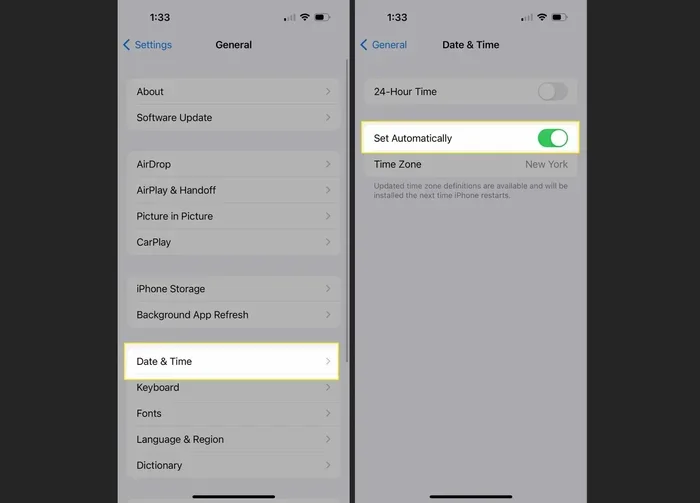
- Open the Settings app on your iPhone.
- Tap General, then tap Date & Time.
- Toggle on Set Automatically. This is your main switch for automatic clock update.
- Make sure Time Zone is also set to automatic mode.
After you enable these settings, your iPhone reaches out to Apple’s time servers. The clock adjusts within seconds. If you are traveling, the time zone updates as you move through different regions.
iPhone Time Settings for Travelers
iPhone has a great feature for frequent travelers. When Set Automatically is on, your phone uses cellular network time and location data. This means your clock updates the moment you land in a new time zone. You do not need to do a single thing.
Some users prefer to turn off automatic time zone but keep automatic time. This lets you keep your home time zone while still having an accurate clock. You can find this option in the same Date & Time menu.
iPhone vs Android: Automatic Time Settings
| Feature | iPhone | Android |
|---|---|---|
| Automatic time toggle | Set Automatically | Set time automatically |
| Automatic time zone | Built into Set Automatically | Separate toggle available |
| Wi-Fi time sync | Yes, when connected | Available on select models |
| Manual time zone override | Yes | Yes |
| Car infotainment sync | Via CarPlay | Via Android Auto |
Automatic Time in Automotive Infotainment Systems
Since we are in the automotive category, let us talk about your car. Modern vehicles come with infotainment systems that display time on the dashboard. These systems also benefit from automatic time on mobile technology.
How Car Displays Sync Time
Most new cars connect to your phone via Apple CarPlay or Android Auto. When your phone has automatic time enabled, the car display mirrors that setting. Your in-car display time stays accurate without you touching any buttons on the dashboard.
Built-in car GPS units work differently. They use satellite signals to determine both location and time. This is called GPS time sync. The GPS receiver in your car pulls exact time from orbiting satellites. This is the same technology that powers your phone’s location services.
Smartwatches and Driving
Many drivers now wear smartwatches. These devices also use automatic time on mobile features. When your smartwatch pairs with your phone, it inherits the time settings. This means your wrist display stays in sync with your car clock and your phone. It is a seamless experience for drivers who check the time on the go.
Tips for Car Clock Accuracy
- Always keep your phone connected to the car via Bluetooth or USB.
- Enable automatic time zone detection on both your phone and car system.
- If your car clock drifts, check the vehicle’s own settings menu for a sync option.
- After a battery replacement, many cars lose their time settings. Reconnect your phone to restore accuracy.
Troubleshooting Common Issues with Automatic Time
Sometimes automatic time on mobile does not work as expected. This can be frustrating, but the fixes are usually simple. Here are the most common problems and how to solve them.
Clock Shows the Wrong Time After Travel
If you have just arrived somewhere and your clock did not update, try turning airplane mode on and then off again. This forces your phone to reconnect to the network. The time zone detection should kick in right away. You can also toggle the automatic time switch off and back on.
Phone Clock Drifts Even with Auto Sync On
Rarely, a phone’s internal clock may drift even with network sync enabled. This can happen if your cellular network time signal is weak. Try restarting your phone to force a fresh sync. You can also check if your phone is set to use Wi-Fi time sync as a backup source.
Car Infotainment Clock Is Stale
If your car clock is wrong but your phone is correct, the issue is likely the connection between them. Disconnect and reconnect your phone to the car system. Some vehicles need a full system restart to refresh the time sync. Check your car manual for the reboot process.
Daylight Saving Time Did Not Update
In rare cases, older devices may not receive the daylight saving update. Make sure your phone software is up to date. Go to Settings, then Software Update or System Update. Install any pending updates. This often fixes automatic clock update issues related to seasonal time changes.
Quick Troubleshooting Checklist
- Toggle airplane mode on and off.
- Restart your device.
- Check that automatic time and time zone are both enabled.
- Update your phone software to the latest version.
- Disconnect and reconnect your phone to your car system.
- Reset network settings if the problem persists.
Pro Tips for Keeping Your Mobile Clock Perfect
Now that you know how to set up and fix automatic time on mobile, here are some expert tips to keep everything running smoothly.
Enable Both Time and Time Zone Sync
Many people only turn on automatic time but forget the time zone setting. This can cause issues when you travel. Always enable both switches for the best experience with automatic time zone detection.
Keep Your Software Updated
Phone updates often include improvements to time sync algorithms. Staying current ensures your device clock settings work at their best. Turn on automatic updates in your settings so you never miss a patch.
Use Wi-Fi as a Backup
When you are at home or in the office, connect to Wi-Fi. Many devices use Wi-Fi time sync as a secondary source. This keeps your clock accurate even if your cellular signal is weak.
Check Your Car Connection Regularly
Take a moment each week to glance at your car display and compare it to your phone. If they do not match, there is a sync issue to fix. Catching it early saves you from arriving late or missing appointments.
Travel Smart
Before a trip, check that your mobile time settings are set to automatic. This is especially important for road trips across multiple time zones. Your phone and car should handle everything, but a quick check never hurts.
Conclusion
Setting automatic time on mobile is a small change that makes a big difference. Your phone, your car, and your smartwatch all benefit from accurate, synced clocks. Whether you are driving across the country or just commuting to work, you deserve to trust your device’s time. Follow the steps in this guide for your Android or iPhone, and never worry about a wrong clock again. Take a few minutes right now to check your settings. Your future self will thank you every time you glance at the time and know it is right.
Frequently Asked Questions
Does automatic time on mobile work without internet?
Yes, it works over your cellular network even without Wi-Fi. Your phone connects to your carrier’s network to fetch the correct time. This is how cellular network time syncs your clock in areas without Wi-Fi coverage.
Can I set a different time zone while keeping automatic time enabled?
Yes. Both Android and iPhone let you override the time zone detection while keeping the clock synced. Go to your date and time settings and manually select your preferred zone. Your clock will still update accurately from the network.
How often does my phone sync the time automatically?
Your phone checks the network time periodically, usually every few hours. It also syncs immediately when you connect to a new network or travel to a different time zone. The automatic clock update happens in the background without any action from you.
Will automatic time drain my phone battery?
No. The time sync process uses very little power. It runs in the background and only connects briefly to the network server. You can keep this feature on without worrying about battery life.
Does automatic time work on smartwatches too?
Yes. When your smartwatch is paired with your phone, it inherits the automatic time on mobile settings. Your watch stays in sync with your phone clock. This is especially helpful for drivers who check the time on their wrist while on the road.
What should I do if my car infotainment clock is wrong?
First, make sure your phone has automatic time enabled and is connected to the car. Then check the car’s own settings menu for a time sync option. If the issue continues, try restarting the infotainment system. This usually refreshes the GPS time sync connection and corrects the clock.