Does CarPlay Use Bluetooth or Wi-Fi – Here is the Answer
Does CarPlay use Bluetooth or Wi-Fi? The answer depends on whether you are using wireless CarPlay or a cable connection. Wireless CarPlay relies on Wi-Fi for data and screen mirroring, while Bluetooth handles initial pairing and audio streaming. Wired CarPlay uses a USB cable for both data transfer and charging. Understanding how each connection works helps you troubleshoot issues and get the most out of your Apple CarPlay setup.
If you have an iPhone and a modern car, there is a good chance you have used Apple CarPlay. It is one of the most popular ways to access your phone’s features safely while driving. But here is a question that confuses a lot of people: does CarPlay use Bluetooth or Wi-Fi?
The short answer is that it uses both, but not at the same time for the same purpose. Wireless CarPlay depends on Wi-Fi for screen mirroring and data transfer, while Bluetooth handles initial pairing and audio streaming. On the other hand, wired CarPlay uses a USB cable for everything. Let us break this down in detail so you fully understand how your iPhone CarPlay connection actually works.
In this guide, we will walk you through every aspect of the CarPlay connection. You will learn the difference between wireless CarPlay and wired CarPlay, what each technology does, and how to get the best experience from your setup. Whether you are dealing with CarPlay connection issues or just curious about how it all works, this article has you covered.
Key Takeaways
- Wireless CarPlay uses Wi-Fi: For screen mirroring and data, wireless CarPlay connects through Wi-Fi, not Bluetooth alone.
- Bluetooth handles audio and pairing: Bluetooth is used for initial device pairing and audio streaming in both wired and wireless setups.
- Wired CarPlay uses USB: A USB cable handles all data transfer, audio, and charging for wired CarPlay connections.
- Both methods have pros and cons: Wireless offers convenience, while wired delivers faster and more stable performance.
- CarPlay compatibility matters: Not all vehicles support wireless CarPlay, so check your car and iPhone compatibility before buying.
- Connection issues are common: Most CarPlay problems can be fixed with simple troubleshooting steps like restarting or updating.
📑 Table of Contents
- What Is Apple CarPlay and Why Does It Matter?
- Does CarPlay Use Bluetooth or Wi-Fi? The Core Answer
- Wireless CarPlay vs Wired CarPlay: Key Differences
- How Wireless CarPlay Connects to Your Car
- Common CarPlay Connection Problems and How to Fix Them
- Tips for Getting the Best CarPlay Experience
- Expert Insights on CarPlay Connectivity
- Is CarPlay Worth It? Final Thoughts
What Is Apple CarPlay and Why Does It Matter?
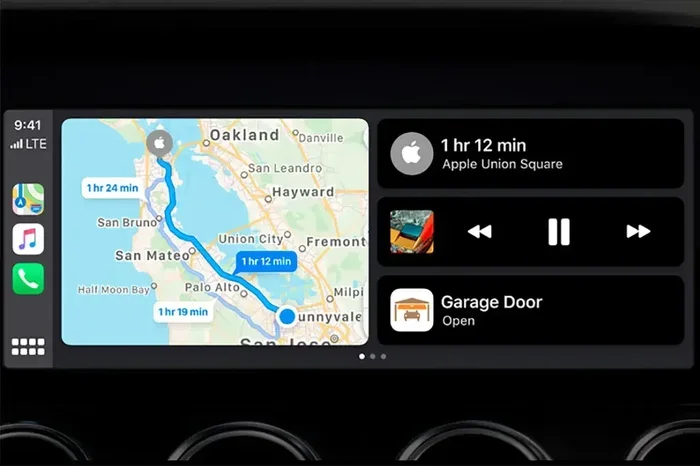
Apple CarPlay is a smart feature that mirrors your iPhone’s interface onto your car’s infotainment screen. It lets you access maps, music, messages, and phone calls without taking your hands off the wheel. The system was first introduced in 2014 and has become a standard feature in most new vehicles.
The whole idea behind CarPlay is safety and convenience. Instead of picking up your phone while driving, you can use your car’s built-in screen, controls, and voice commands. This means you can navigate with CarPlay navigation, stream music, make calls, and even send voice-to-text messages, all while staying focused on the road.
Here are some of the key CarPlay features that make it so popular:
- Siri integration: You can use voice commands to make calls, send texts, and get directions hands-free.
- Apple Maps and third-party apps: Google Maps, Waze, Spotify, and other apps work seamlessly with CarPlay.
- Audio streaming: Play music, podcasts, and audiobooks through your car’s speakers.
- Call management: Make and receive calls directly through the car’s screen and microphone.
- Voice-to-text: Dictate and send messages without typing on your phone.
Understanding what CarPlay does is important because it helps you understand why the connection method matters so much. The way your phone talks to your car affects speed, stability, audio quality, and even battery life on both devices.
Does CarPlay Use Bluetooth or Wi-Fi? The Core Answer
Now let us get to the heart of the matter. Does CarPlay use Bluetooth or Wi-Fi? The truth is that it uses a combination of both, but their roles are different depending on whether you are using wireless CarPlay or a cable connection.
When you use wireless CarPlay, your iPhone connects to your car’s infotainment system using Wi-Fi. The Wi-Fi connection handles the heavy lifting, which includes screen mirroring, app data, and real-time navigation updates. Bluetooth plays a supporting role by handling the initial pairing process and managing audio streaming.
When you use wired CarPlay, a USB cable handles all data transfer and charging. In this case, Bluetooth is not involved in the CarPlay connection at all, though your phone may still be connected to the car’s Bluetooth system separately for audio streaming.
Here is a quick comparison of how each connection type works:
The Role of Bluetooth in CarPlay
Bluetooth is always part of the CarPlay setup, even if you are using a USB cable. Bluetooth is responsible for the initial handshake between your iPhone and the car’s system. It tells your car that your phone is available and ready to connect.
In wireless CarPlay setups, Bluetooth also handles audio streaming separately from the Wi-Fi data connection. This means your music and call audio travel through Bluetooth, while the screen mirroring and app data travel through Wi-Fi. It is a smart division of labor that keeps everything running smoothly.
However, Bluetooth alone cannot handle screen mirroring. The data transfer speed of Bluetooth is too slow for real-time video and app interfaces. This is why Wi-Fi is essential for wireless CarPlay.
The Role of Wi-Fi in CarPlay
Wi-Fi is the backbone of wireless CarPlay. When you connect wirelessly, your iPhone creates a private Wi-Fi network or connects to the car’s Wi-Fi hotspot. This connection is much faster than Bluetooth and can handle the large amounts of data needed for screen mirroring and app use.
Wi-Fi also allows for real-time updates. Navigation apps can load fresh map data, traffic updates, and route changes without any lag. Music streaming apps can buffer and play songs smoothly. All of this is possible because of the faster data speeds that Wi-Fi provides.
One thing to keep in mind is that Wi-Fi uses more battery than Bluetooth. If you are on a long road trip and your phone is not plugged in, wireless CarPlay can drain your battery faster than a wired connection. This is one of the main reasons some people still prefer wired CarPlay.
The Role of USB in Wired CarPlay
When you plug your iPhone into your car with a USB cable, the connection is entirely different from a wireless setup. The USB cable carries all the data needed for screen mirroring, app use, and audio streaming. It also charges your phone at the same time.
Wired CarPlay is generally faster and more stable than wireless. There is no Wi-Fi signal to interfere with, no pairing process to worry about, and no battery drain from the connection. This is why many people prefer wired CarPlay for long drives or when they need the most reliable connection possible.
The downside of wired CarPlay is convenience. You have to plug in your phone every time you get in the car. Over time, the cable can wear out, and the USB port in your car can become loose or dirty. These small issues can lead to frustrating CarPlay connection issues.
Wireless CarPlay vs Wired CarPlay: Key Differences
Now that you understand the basic connection methods, let us compare wireless CarPlay and wired CarPlay side by side. This will help you decide which option is better for your needs.
Connection Speed and Stability
Wired CarPlay is faster and more stable. The USB connection provides a direct, consistent data link between your phone and your car. There are no signal drops, no interference, and no lag. If you use CarPlay navigation in areas with poor Wi-Fi signal, a wired connection will give you a much smoother experience.
Wireless CarPlay depends on the quality of the Wi-Fi signal between your phone and your car. In most cases, the connection is fast and stable. However, in areas with a lot of Wi-Fi interference or in older vehicles with weaker Wi-Fi hardware, you might experience lag or disconnections.
Battery Impact
This is one of the biggest differences between the two methods. Wireless CarPlay drains your iPhone battery because the Wi-Fi radio stays active the entire time you are driving. If you are on a long trip and do not have a charger, your phone battery can drop significantly.
Wired CarPlay actually charges your phone while you drive. This is a huge advantage for long road trips. Your phone stays powered, and you do not have to worry about battery life affecting your CarPlay experience.
Convenience and Ease of Use
Wireless CarPlay wins hands down when it comes to convenience. You just get in your car, and the connection happens automatically. No cables, no fumbling, no hassle. This is why most new cars come with wireless CarPlay support, and why many people prefer it once they have tried it.
Wired CarPlay requires you to carry a cable and plug it in every time. It is not a big deal, but it is an extra step that some people find annoying. On the other hand, wired connections are plug-and-play and rarely have setup issues.
Audio Quality
When it comes to audio quality, both methods can deliver excellent sound. In wired CarPlay, the audio signal travels through the USB cable, which provides a clean digital connection. In wireless CarPlay, the audio is streamed through Bluetooth, which has improved significantly over the years.
For most people, the difference in audio quality between the two methods is negligible. If you are an audiophile who cares about every detail of sound quality, a wired connection might give you a slight edge. But for everyday driving, both methods sound great.
Cost and Compatibility
Wireless CarPlay is typically found in newer or higher-end vehicles. If your car does not support it natively, you can sometimes add it through an aftermarket head unit or adapter. These can range from affordable to quite expensive, depending on the brand and features.
Wired CarPlay is more widely available and generally less expensive. Most cars that support CarPlay will have at least one USB port that works with it. You just need a compatible cable, and you are good to go.
How Wireless CarPlay Connects to Your Car
Understanding how wireless CarPlay actually connects can help you troubleshoot problems and get the best performance. The process is more complex than it might seem at first glance.
When you first set up wireless CarPlay, your iPhone and your car’s infotainment system exchange information over Bluetooth. This includes device names, supported features, and security keys. Once the initial pairing is complete, the system switches to Wi-Fi for the actual data connection.
Here is a step-by-step look at what happens when you connect wireless CarPlay:
- Bluetooth discovery: Your iPhone detects the car’s infotainment system via Bluetooth.
- Pairing: You confirm the connection on both devices. This is a one-time setup process.
- Wi-Fi connection: After pairing, your iPhone creates or connects to a Wi-Fi network with the car.
- Data transfer begins: Screen mirroring, app data, and audio all flow through the Wi-Fi connection.
- Ongoing maintenance: The system maintains the Wi-Fi connection and uses Bluetooth for audio and call management.
This two-step process is why wireless CarPlay sometimes takes a few seconds longer to connect than wired CarPlay. The Bluetooth pairing happens first, and then the Wi-Fi connection is established. Once both are active, the experience is smooth and fast.
One important thing to know is that wireless CarPlay uses a special type of Wi-Fi connection. It does not connect to your home Wi-Fi network or your phone’s mobile data. The connection is a direct, private link between your iPhone and your car. This keeps your data secure and ensures a fast, stable connection even when you are driving through areas with poor cellular coverage.
Common CarPlay Connection Problems and How to Fix Them
Even though CarPlay is a well-designed system, connection problems can still happen. Whether you use wireless or wired CarPlay, you might run into issues from time to time. Here are the most common problems and how to fix them.
CarPlay Does Not Connect at All
If your iPhone CarPlay does not connect, the first thing to check is your cable. If you are using wired CarPlay, try a different USB cable. Many cables are designed for charging only and do not support data transfer. A lightning cable or USB-C cable that supports data should fix this issue.
For wireless CarPlay, make sure Bluetooth and Wi-Fi are turned on in your iPhone settings. Also, check that your car’s infotainment system is set to the correct input mode. Sometimes simply restarting both your phone and your car’s system solves the problem.
CarPlay Connects but Screen Is Blank
A blank screen is one of the most frustrating CarPlay connection issues. This usually happens when the screen mirroring data is not being transmitted properly. Try disconnecting and reconnecting your phone. If that does not work, restart your iPhone and your car’s infotainment system.
Another common cause is an outdated CarPlay update. Make sure your iPhone is running the latest version of iOS, and check if your car’s system has any available firmware updates. Apple and car manufacturers regularly release updates that fix bugs and improve compatibility.
Audio Cuts Out or Sounds Garbled
If your audio keeps cutting out or sounds distorted, the issue is likely with the Bluetooth connection. Try forgetting the car’s Bluetooth device on your iPhone and then re-pairing it. You can also try turning Bluetooth off and back on.
For wired connections, a loose or damaged cable can cause audio problems. Inspect your cable for fraying or bent connectors. Replacing the cable is often the simplest and cheapest fix.
CarPlay Disconnects While Driving
Frequent disconnections are a sign of an unstable connection. If you are using wireless CarPlay, this could be caused by Wi-Fi interference from other devices in your car. Try turning off other Bluetooth devices or Wi-Fi hotspots that might be competing for the same signal.
If the problem persists, check whether your car is too far from your phone. In wireless CarPlay, the iPhone needs to be within a reasonable range of the car’s Wi-Fi antenna. Placing your phone in a different location in the car can sometimes improve the connection.
Apps Do Not Load or Respond Slowly
Slow app performance in CarPlay is often related to the connection type. Wireless CarPlay can sometimes be slower than wired, especially when many apps are running in the background on your iPhone. Close unused apps before you start driving to free up resources.
Also, check your CarPlay data usage. Navigation apps and music streaming services use a lot of data, and if you are in an area with a weak Wi-Fi signal, performance can suffer. Switching to a wired connection can help improve speed in these situations.
Tips for Getting the Best CarPlay Experience
Want to get the most out of your Apple CarPlay? Here are some practical tips that will help you enjoy a smoother, faster, and more reliable connection every time you drive.
Keep Your iPhone and Car Updated
Apple and car manufacturers regularly release software updates that improve CarPlay compatibility and fix bugs. Make sure your iPhone is running the latest version of iOS, and check for updates to your car’s infotainment system. Staying up to date is one of the easiest ways to prevent connection problems.
Use a High-Quality Cable for Wired CarPlay
If you use wired CarPlay, invest in a good quality cable. Cheap cables often fail to support data transfer properly, which can lead to connection drops, slow performance, and audio issues. Look for cables that are certified by Apple or made by reputable brands.
Restart Your System Regularly
Just like any technology, CarPlay benefits from a fresh start from time to time. Restart your iPhone and your car’s infotainment system regularly. This clears out temporary files, refreshes connections, and can fix minor glitches before they become bigger problems.
Manage Your iPhone’s Battery
If you use wireless CarPlay frequently, battery drain can become an issue. Consider using a wireless charging pad in your car so your phone stays powered while connected. You can also reduce battery drain by turning off unnecessary features like background app refresh for apps you do not use while driving.
Position Your Phone Correctly
For wireless CarPlay, the placement of your phone matters. Keep it in a location where it has a clear line of sight to the car’s Wi-Fi antenna. Avoid placing your phone in a compartment that is far from the front of the car or surrounded by metal, which can block the Wi-Fi signal.
Disable Unnecessary Connections
If you experience interference or slow performance, try turning off other wireless connections in your car. Devices like dashcams, phone mounts with built-in chargers, or other Bluetooth accessories can sometimes interfere with the CarPlay Wi-Fi signal. Disconnecting them temporarily can help isolate the problem.
Expert Insights on CarPlay Connectivity
Automotive technology experts agree that the future of CarPlay is moving toward wireless connections. Apple has been working to improve the speed and stability of wireless CarPlay with each new iOS update. The latest versions of iOS have significantly reduced the battery drain associated with wireless CarPlay, making it a more viable option for everyday use.
Car manufacturers are also improving their Wi-Fi hardware to support faster and more reliable wireless CarPlay connections. Many new vehicles now come with dedicated Wi-Fi chips that are specifically designed for CarPlay, which reduces interference and improves performance.
However, experts also note that wired CarPlay is not going away anytime soon. For drivers who prioritize reliability and speed, a cable connection remains the gold standard. The best approach is to understand both methods and choose the one that fits your driving habits and vehicle setup.
Is CarPlay Worth It? Final Thoughts
So, does CarPlay use Bluetooth or Wi-Fi? As we have covered, the answer is that it uses both in different ways. Wireless CarPlay relies on Wi-Fi for data and screen mirroring, with Bluetooth handling audio and initial pairing. Wired CarPlay uses a USB cable for everything and does not depend on either Bluetooth or Wi-Fi for the main connection.
Both methods have their strengths. Wireless CarPlay offers convenience and a clean, cable-free setup. Wired CarPlay delivers faster speeds, better stability, and charges your phone while you drive. The best choice depends on your priorities, your vehicle, and how you use your phone while driving.
No matter which method you prefer, Apple CarPlay remains one of the best ways to stay connected, entertained, and safe on the road. With regular updates, expanding compatibility, and a growing ecosystem of supported apps, CarPlay continues to make driving smarter and more enjoyable for millions of people around the world.
Take some time to explore your CarPlay settings, experiment with both wired and wireless connections, and find the setup that works best for you. Once you experience the convenience of CarPlay, you will wonder how you ever drove without it.
Frequently Asked Questions
Can I use CarPlay with just Bluetooth and no Wi-Fi?
No, you cannot use the full CarPlay experience with Bluetooth alone. Bluetooth handles audio and initial pairing, but screen mirroring and app data require either Wi-Fi (for wireless CarPlay) or a USB cable (for wired CarPlay). Without Wi-Fi or a cable, you will only get basic audio streaming through Bluetooth.
Why does wireless CarPlay drain my battery faster?
Wireless CarPlay keeps your Wi-Fi radio active the entire time you are driving, which uses more battery than a normal Bluetooth connection. The screen mirroring and data transfer process requires constant communication between your phone and your car, which consumes significant power. Using a charger while driving can help offset this battery drain.
Can I switch between wired and wireless CarPlay?
Yes, you can switch between wired and wireless CarPlay depending on your preference and situation. If your car supports both, you can simply plug in a cable when you want a faster, more stable connection, and use wireless when you prefer the convenience of a cable-free setup. Your iPhone will remember both connections.
Does CarPlay work if my phone has no cellular signal?
Yes, CarPlay works even without a cellular signal for most features. Navigation apps can use offline maps, and you can still play music stored on your phone or streamed over Wi-Fi. However, features that require internet access, like live traffic updates or streaming music from online services, will not work without a signal.
Is wired CarPlay faster than wireless CarPlay?
Yes, wired CarPlay is generally faster and more stable than wireless. The USB connection provides a direct data link without the potential for Wi-Fi interference or signal drops. For tasks like real-time navigation and app loading, wired CarPlay usually performs better, especially in areas with weak Wi-Fi signals.
What cable do I need for wired CarPlay?
For wired CarPlay, you need a Lightning cable or a USB-C cable depending on your iPhone model. The cable must support data transfer, not just charging. Many standard charging cables do not support data transfer, which can cause connection issues. Look for cables labeled as compatible with Apple CarPlay or certified by Apple.
=== CONCLUSION ===
Does CarPlay use Bluetooth or Wi-Fi? The answer is clear now. Wireless CarPlay uses Wi-Fi for screen mirroring and data, while Bluetooth handles audio and initial pairing. Wired CarPlay uses a USB cable for all data and does not rely on either wireless technology for the main connection. Both methods have their place, and understanding how they work helps you make the best choice for your driving needs.
Whether you prefer the convenience of wireless CarPlay or the reliability of a cable connection, Apple CarPlay makes driving safer and more connected. Keep your devices updated, use quality cables, and follow the tips in this guide to enjoy the best possible CarPlay experience every time you hit the road.