Does CarPlay Use Bluetooth or Wi-Fi Here Is the Answer
Does CarPlay use Bluetooth or Wi-Fi? The answer is both. Apple CarPlay relies on Bluetooth for the initial connection, calls, and voice commands, while Wi-Fi handles visual displays, maps, and high-quality streaming. Understanding how these two technologies work together helps you troubleshoot issues and get the best performance from your wireless or wired setup.
If you have ever plugged your phone into your car and wondered about the technology behind it, you are not alone. Does CarPlay use Bluetooth or Wi-Fi? This is one of the most common questions car owners ask today. The answer is not as simple as a yes or no. CarPlay uses both Bluetooth and Wi-Fi depending on the type of connection you are using. Understanding how these two technologies work together can help you get the most out of your in-car experience every single time.
Apple designed CarPlay to make driving safer and more convenient. It lets you access maps, music, messages, and calls right from your car’s screen. But the way your phone connects to the car depends on whether you are using a wired or wireless setup. Wireless CarPlay relies on both Bluetooth and Wi-Fi, while the wired version uses a USB cable. Let us break down exactly how each connection works and why it matters for your daily drive.
Key Takeaways
- CarPlay uses both Bluetooth and Wi-Fi: Each technology handles different tasks for a seamless experience.
- Bluetooth manages the foundation: It handles pairing, calls, voice commands, and basic audio streaming.
- Wi-Fi powers the visuals: Maps, navigation, and high-quality music streaming rely on the Wi-Fi connection.
- Wireless and wired CarPlay differ: Wireless uses both Bluetooth and Wi-Fi, while wired uses a USB cable only.
- Troubleshooting starts with understanding the connection: Knowing which technology handles what helps you fix problems fast.
- Both technologies work as partners: They complement each other and cannot replace each other in CarPlay.
- Software updates matter: Keeping your iPhone and car infotainment system updated prevents most connection issues.
📑 Table of Contents
What Is CarPlay and How Does It Connect?
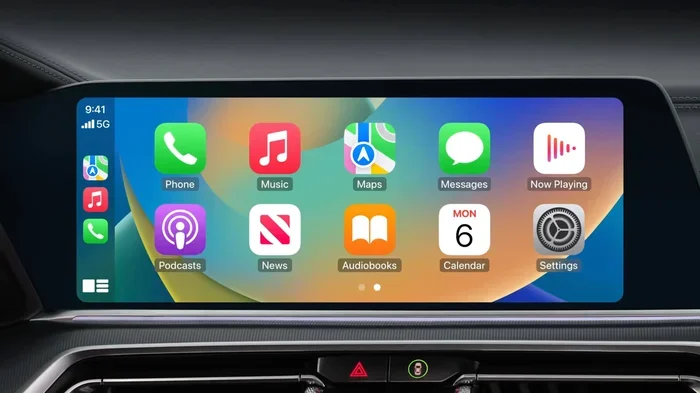
Apple CarPlay is a smart system that mirrors key parts of your iPhone onto your car’s infotainment display. It was introduced to keep drivers focused on the road while still staying connected. When you connect your phone, you can make calls, send messages, listen to music, and use navigation apps without picking up your device. It is one of the most popular car infotainment features available today.
The connection between your iPhone and your car happens through specific protocols. CarPlay Bluetooth handles the initial handshake between your phone and the car. This is what allows your car to recognize your device. Once the connection is established, different types of data flow through different channels. Some data travels through Bluetooth while other data uses Wi-Fi. This split responsibility is what makes CarPlay so versatile and reliable.
How the Initial Connection Works
When you first pair your iPhone with your car, Bluetooth is the technology that makes the introduction. CarPlay Bluetooth connection allows your phone and car to find each other and exchange basic information. Think of it like a digital handshake. Your car says hello and your phone responds with what it can offer.
After the Bluetooth handshake, the system decides how to route your data. For audio and call functions, Bluetooth handles the streaming. For visual data like maps and media controls, the system may use Wi-Fi or a USB cable. This split responsibility is what makes CarPlay so versatile. Here is a simple breakdown of what happens first:
- Your car’s infotainment system sends out a Bluetooth signal
- Your iPhone detects the signal and responds
- The two devices pair using CarPlay Bluetooth
- Wi-Fi is then activated for the data-heavy tasks
- Your CarPlay home screen appears on the car display
Wired vs Wireless CarPlay
Wired CarPlay uses a USB cable to connect your iPhone to the car. This method provides a stable and fast connection. It also charges your phone while you drive. Wireless CarPlay does not need a cable. Instead, it uses a combination of Bluetooth and Wi-Fi to transmit data wirelessly through the air.
Both methods offer the same features and apps. The choice between them usually comes down to personal preference and your car’s capabilities. Here is a quick look at what each method offers:
- Wired CarPlay: Uses a USB cable. Connection is very stable. No Wi-Fi needed. Charges your phone at the same time.
- Wireless CarPlay: Uses both Bluetooth and Wi-Fi. No cable required. Slightly more convenient. May use more battery.
- CarPlay cable connection: Best for long road trips where battery and stability matter most.
- CarPlay wireless connection: Best for daily commuting where convenience is the priority.
Many newer cars now come with wireless CarPlay built in. If your car does not support it, you can sometimes add it with an aftermarket adapter. Check your car manufacturer’s website or talk to your dealer to find out what your model supports.
Does CarPlay Use Bluetooth or Wi-Fi?
The short answer is both. CarPlay uses Bluetooth and Wi-Fi together to deliver a seamless experience. But each technology has a specific role. Let us look at exactly how each one contributes to your CarPlay setup and why both are essential.
Does CarPlay use Bluetooth for everything? No. Bluetooth handles the initial pairing, call audio, and basic audio streaming. It is the foundation of the connection. Does CarPlay use Wi-Fi then? Yes, for the heavy lifting. Wi-Fi takes over when you need to display maps, stream high-quality music, or use apps that require more data.
The Role of Bluetooth in CarPlay
CarPlay Bluetooth does several important jobs. First, it handles the initial connection between your phone and your car. When you get in and sit down, Bluetooth wakes up and finds your device. This is called CarPlay Bluetooth pairing. It happens automatically every time you enter your vehicle.
Second, Bluetooth manages your calls and voice commands. When you use Siri through CarPlay, Bluetooth sends your voice to the phone and brings the reply back through the car speakers. This all happens over the Bluetooth connection without any noticeable delay.
Third, Bluetooth handles basic audio streaming. If you are listening to a podcast or a phone call, Bluetooth carries that audio to your car’s sound system. It is reliable and uses very little power. Here is what CarPlay Bluetooth specifically handles:
- Initial device pairing and recognition
- Phone call audio and hands-free calling
- Voice command processing through Siri
- Basic audio streaming from podcasts and calls
- Low-power continuous connection between devices
The Role of Wi-Fi in CarPlay
CarPlay Wi-Fi takes over when you need more bandwidth. When you open Apple Maps and see the route on your car screen, that visual data travels over Wi-Fi. When you stream Spotify or Apple Music in high quality, Wi-Fi handles the data transfer.
Wireless CarPlay creates a local Wi-Fi hotspot between your phone and your car. This is different from your home Wi-Fi or your phone’s cellular data. The CarPlay Wi-Fi hotspot is a direct, private connection just between your devices. It does not use your cellular data plan for the visual display. Here is what CarPlay Wi-Fi specifically handles:
- Visual display of maps and navigation
- High-quality music and podcast streaming
- App data loading and screen rendering
- Faster data transfer for smooth performance
- Live traffic updates and route calculations
Understanding this split helps you troubleshoot issues. If your calls work but maps do not load, the problem is likely with the Wi-Fi connection. If your maps work but you cannot hear calls, Bluetooth may be the issue. This knowledge makes CarPlay troubleshooting much easier.
CarPlay Bluetooth vs Wi-Fi: Key Differences
Here is a side-by-side look at how Bluetooth and Wi-Fi differ in the CarPlay experience:
- Bluetooth: Handles the handshake, calls, voice commands, and basic audio. Uses low power. Has limited bandwidth. Great for continuous connections.
- Wi-Fi: Handles visual data, maps, high-quality streaming, and app content. Uses more power. Has high bandwidth. Great for data-heavy tasks.
Neither technology can do the job alone. They need each other to make CarPlay work the way Apple intended. This is why the question “does CarPlay use Bluetooth or Wi-Fi” does not have a single answer. The real answer is that it uses both.
Wireless CarPlay vs Wired CarPlay
Choosing between wireless and wired CarPlay is a common decision. Both options use CarPlay Bluetooth and Wi-Fi in different ways. Let us explore the pros and cons of each so you can make the best choice for your driving needs.
Wireless CarPlay: Convenience at Its Best
Wireless CarPlay is the more modern option. It does not require you to plug in a cable every time you get in the car. Once your phone is paired, it connects automatically when you start the engine. This is called CarPlay automatic connection and it is a game changer for daily commuters.
However, wireless CarPlay uses more battery. The constant Bluetooth and Wi-Fi connection drains your phone faster. If you already have low battery, you might notice the drain more quickly. Some drivers also report that wireless connections can occasionally lag or disconnect in areas with weak signals.
Here are some tips for getting the best wireless CarPlay experience:
- Keep your phone charged before getting in the car
- Make sure your car’s firmware is up to date
- Restart both your phone and car infotainment system if connections fail
- Keep your iPhone updated to the latest iOS version
- Disable unnecessary Bluetooth devices that might interfere
Wired CarPlay: Reliable and Stable
Wired CarPlay uses a USB cable to connect your iPhone. This method is very reliable. You do not have to worry about Wi-Fi signals dropping or Bluetooth interference. The connection is direct and consistent every single time you plug in.
Wired CarPlay also charges your phone while you drive. This is a big advantage for long road trips. You do not have to worry about battery drain from using CarPlay Bluetooth and Wi-Fi simultaneously. The CarPlay cable connection is also faster for loading large apps and maps.
The downside is the cable. You need to plug and unplug your phone every time. Cables can wear out or break over time. Some people also find cables messy in the car. But for reliability, nothing beats a good CarPlay USB connection.
Which One Should You Choose?
If your car supports wireless CarPlay, it is usually the better choice for daily driving. The convenience is hard to beat. But if you notice connection issues or battery drain, switching to a wired connection can help. Many drivers keep both options available and switch based on their needs. Here is a quick comparison:
- Choose Wireless CarPlay if: You want convenience, you have a short commute, and your car supports it natively.
- Choose Wired CarPlay if: You take long road trips, you want maximum stability, or you notice wireless connection issues.
- Use Both: Some drivers use wireless for daily drives and wired for long trips. This gives you the best of both worlds.
How CarPlay Bluetooth and Wi-Fi Work Together
The magic of CarPlay lies in how Bluetooth and Wi-Fi work as a team. They are not competitors. They are partners. Each one handles the tasks it is best at, and together they create a smooth experience that feels effortless.
The Handshake Process Explained
When you get into your car, here is what happens behind the scenes in just a few seconds:
- Your car’s infotainment system sends out a Bluetooth signal
- Your iPhone detects the signal and responds
- The two devices pair using CarPlay Bluetooth
- Wi-Fi is then activated for the data-heavy tasks
- Your CarPlay home screen appears on the car display
This entire process takes just a few seconds. It happens so fast that most drivers do not even notice. But understanding it can help when things go wrong. If step one fails, your phone will not connect at all. If step four fails, you will get sound but no screen. Knowing where the breakdown happens helps you fix it faster.
Why Both Technologies Are Needed
Bluetooth alone cannot handle the visual data that CarPlay displays. Bluetooth has limited bandwidth. It is great for audio and voice but not for high-resolution maps and video. Wi-Fi provides the speed needed for visual data and smooth app performance.
On the other hand, Wi-Fi alone cannot handle the initial pairing and call functions. Bluetooth is better for low-power, continuous connections like calls. So the two technologies complement each other perfectly. This is why does CarPlay use Bluetooth or Wi-Fi is the wrong question. The right question is how do they work together. And the answer is beautifully simple.
CarPlay Data Usage Over Wi-Fi
One common concern is CarPlay Wi-Fi data usage. Since wireless CarPlay creates its own local connection, it does not use your cellular data for the display. However, apps like Maps do use data for live traffic updates and directions. This data comes through your phone’s cellular connection, not through the CarPlay Wi-Fi link.
If you are worried about data usage, you can take a few simple steps:
- Download maps for offline use before your trip
- Turn off live traffic updates in Maps settings
- Use Wi-Fi-only music streaming when connected to home networks
- Check your data usage in Settings if you notice unusual drain
Most drivers find that CarPlay data usage is minimal for everyday use. Navigation and music streaming use very little data. You can easily go weeks without noticing any impact on your monthly data plan.
Common CarPlay Connection Problems and Fixes
Even with a great setup, CarPlay connection issues can happen. Knowing what causes them can help you fix them fast and get back on the road with confidence.
CarPlay Won’t Connect via Bluetooth
If your CarPlay will not connect, the first thing to check is Bluetooth. Make sure Bluetooth is turned on in your iPhone settings. Also check that your car is in pairing mode. Sometimes the simplest fix is to turn Bluetooth off and back on again. This refreshes the CarPlay Bluetooth connection and often resolves the issue immediately.
You can also try removing the paired device and pairing it fresh. Go to Settings, Bluetooth, find your car, and tap “Forget This Device.” Then start the pairing process again. This often resolves stubborn connection problems. Make sure your iPhone is not connected to another device that might be causing a conflict.
CarPlay Connects but Screen Is Blank
If your phone pairs but the CarPlay screen stays blank, the issue is likely with Wi-Fi. Wireless CarPlay needs a stable Wi-Fi connection to display visuals. Try restarting your phone and your car’s infotainment system. This resets both the Bluetooth and Wi-Fi connections and clears temporary glitches.
Another quick fix is to toggle Airplane Mode on and off. This resets both Bluetooth and Wi-Fi connections in seconds. It is one of the fastest ways to refresh your CarPlay Bluetooth and Wi-Fi connection without losing your paired devices. This trick works for most CarPlay connection issues and should be your first troubleshooting step.
Audio Cuts Out or Sounds Scratchy
Audio problems are usually a Bluetooth issue. If your calls or music sound distorted, move your phone closer to the car’s Bluetooth antenna. In most cars, this is located near the center console. Distance and physical barriers can weaken the Bluetooth connection and cause audio dropouts.
You should also check if other Bluetooth devices are connected. If your phone is connected to a smartwatch or headphones at the same time, it can cause audio conflicts. Disconnect unnecessary devices and see if the sound improves. Keeping your CarPlay audio streaming clean and simple helps prevent these issues.
CarPlay Disconnects Frequently
Frequent disconnections can be frustrating. This often happens when the Wi-Fi signal is weak. If you are using wireless CarPlay, make sure nothing is blocking the signal between your phone and car. Metal surfaces, other electronics, and even your phone case can interfere with the Wi-Fi connection.
Updating your car’s software can also help. Manufacturers often release updates that improve CarPlay compatibility and fix known bugs. Check with your dealer or look in your car’s settings for available updates. On the iPhone side, make sure you are running the latest iOS version. Outdated software is one of the most common causes of CarPlay setup problems.
Tips for Getting the Best CarPlay Experience
Getting the most out of CarPlay Bluetooth and Wi-Fi is not hard. A few simple habits can make a big difference in how your system performs every time you get behind the wheel.
Keep Your Software Updated
Both iOS and your car’s infotainment system get regular updates. These updates often include fixes for connection issues and improvements to CarPlay features. Make sure your iPhone is running the latest iOS version. Check your car manufacturer’s website for infotainment updates. Keeping everything current is the easiest way to prevent problems.
Use a Quality USB Cable for Wired CarPlay
If you use wired CarPlay, the cable matters more than you might think. Cheap cables can cause connection drops and slow data transfer. Look for cables that are MFi certified, which means Apple has approved them. A good cable ensures a stable CarPlay USB connection every time. Avoid frayed or damaged cables and replace them when you notice wear.
Restart Before Long Trips
A quick restart before a long drive can prevent issues. Restart your iPhone and your car’s infotainment system. This clears any temporary glitches and refreshes both Bluetooth and Wi-Fi connections. It takes less than a minute and can save you from a frustrating experience on the road.
Manage Your Apps for Smooth Performance
Too many apps running in the background can slow down CarPlay. Close apps you are not using. This frees up resources for CarPlay navigation and audio streaming. Your system will run smoother and faster. You can double-click the side button on your iPhone to see open apps and swipe them away.
Set Up Siri for Hands-Free Use
Siri works beautifully with CarPlay. Set up voice commands for calls, messages, and navigation. This keeps your eyes on the road and hands on the wheel. CarPlay Bluetooth handles the voice connection, so you do not need to touch your phone. To enable Siri, go to Settings, Siri & Search, and turn on “Listen for Hey Siri.”
Expert Insight: The Future of CarPlay Connections
Industry experts believe that future versions of CarPlay will rely even more on Wi-Fi for faster data transfer and richer visuals. Apple continues to improve CarPlay wireless capabilities with each iOS update. Some analysts predict that wired connections may eventually become optional as wireless technology improves. For now, understanding how both Bluetooth and Wi-Fi work in CarPlay gives you an advantage as a user.
Conclusion
Does CarPlay use Bluetooth or Wi-Fi? The answer is both, and they work together to give you a great experience. CarPlay Bluetooth handles the initial connection, calls, and voice commands. CarPlay Wi-Fi takes care of visual displays, maps, and high-quality streaming. Neither technology is more important than the other. They are both essential parts of the CarPlay experience.
Whether you use wireless or wired CarPlay, understanding these connections helps you troubleshoot problems and get the best performance. Keep your software updated, use quality cables, and manage your connections wisely. A little knowledge goes a long way toward a smoother driving experience.
Next time someone asks you does CarPlay use Bluetooth or Wi-Fi, you will have a clear and confident answer. Share what you have learned and help other drivers get the most from their Apple CarPlay setup. Safe travels and happy driving!