How Do I Change My Automatic Time Settings on My Device
Changing your automatic time settings is quick and easy once you know where to look. Whether you drive a sedan, SUV, or truck, your vehicle’s infotainment system keeps track of the clock, but sometimes it needs a manual tweak. This guide walks you through every step to adjust, sync, and fix your car’s automatic time settings on any device.
Have you ever glanced at your car dashboard and noticed the clock is wrong? It happens to all of us. You pull out of the driveway and realize your automatic time settings are off by a few hours or even the wrong time zone entirely.
The good news is fixing this is usually a breeze. Whether you drive a brand-new model or an older vehicle, your car’s infotainment system gives you control over the clock. In this guide, we will walk you through exactly how to change your automatic time settings on any device. You will learn where to find the settings, how to sync your clock, and what to do when things go wrong.
We have also included tips for handling daylight saving time, switching between time formats, and troubleshooting common issues. By the end of this article, you will feel confident adjusting your car clock like a pro. Let us get started.
Key Takeaways
- Know Your System: Most modern cars sync time automatically through GPS or cellular data, but you can override it anytime.
- Quick Access: You can usually find time settings in the vehicle settings menu or the clock app on your dashboard.
- Daylight Saving Time: Many cars handle DST automatically, but older models may need manual adjustment twice a year.
- Time Format Options: You can switch between 12-hour and 24-hour formats in just a few taps.
- Troubleshooting Helps: A soft reset or factory reset can fix most clock sync issues in your vehicle.
- Phone Integration Matters: Apple CarPlay and Android Auto often mirror your phone’s time settings directly to your car.
- Manual Override Is Simple: Even if automatic sync is on, you can still set the time manually whenever needed.
📑 Table of Contents
- What Are Automatic Time Settings in Your Vehicle?
- How to Change Automatic Time Settings on Your Infotainment Screen
- How to Sync Your Car Clock with Your Phone
- Adjusting Time Format: 12-Hour vs 24-Hour Clock
- Handling Daylight Saving Time Automatically
- Troubleshooting Common Automatic Time Issues
- Expert Tips for Keeping Your Car Clock Accurate
- Key Takeaways
- Conclusion
What Are Automatic Time Settings in Your Vehicle?
Before we dive into the steps, let us talk about what automatic time settings actually are. Most modern vehicles come equipped with a system that syncs the clock automatically. This means your car pulls the correct time from a GPS signal, a cellular network, or even your connected smartphone.
The automatic time settings feature saves you from having to adjust the clock every time you cross a time zone or when daylight saving time kicks in. Your vehicle’s infotainment computer handles all of that behind the scenes. It is one of those features you do not think about until it stops working or gives you the wrong time.
Here are some common ways your car keeps time automatically:
- GPS Sync: The car uses satellite signals to determine your location and pulls the correct local time.
- Cellular Network Sync: Some vehicles connect to a mobile data network to fetch the current time.
- Phone Mirroring: Through Apple CarPlay or Android Auto, your car borrows the time from your phone.
- Internal Clock Backup: Many cars have a built-in clock that runs even when the vehicle is off, using battery power.
Understanding these methods helps you troubleshoot when something goes wrong. If one source fails, your car may fall back on another or simply display the wrong time. Knowing how your system works makes it much easier to fix.
Why Does Your Car Clock Sometimes Show the Wrong Time?
Several things can cause your car clock to drift or display incorrect information. A weak GPS signal is one of the most common culprits. If you are driving through a tunnel or a dense urban area with tall buildings, your car may lose its connection to satellites temporarily.
Another reason is a dead or weak battery. When you jump-start your car or replace the battery, the internal clock often resets to a default value like 12:00. This is normal and easy to fix. Some older vehicles simply do not have automatic sync built in, which means you need to adjust the time manually every few months.
Software glitches can also interfere with your automatic time settings. A firmware update or a system crash may disrupt the clock sync feature. In rare cases, a hardware issue with the infotainment unit itself causes persistent time problems. But most of the time, the fix is simple and takes just a few minutes.
How to Change Automatic Time Settings on Your Infotainment Screen
Now let us get into the practical steps. Changing your automatic time settings depends on your car’s make and model, but the general process is very similar across most vehicles. We will walk you through the most common path.
Start by sitting in your parked car and turning on the ignition. You do not need to start the engine, but the infotainment screen needs to be active. Look for the Settings icon on the home screen. It usually looks like a gear or a cog wheel. Tap on it to open the main settings menu.
From there, scroll through the options until you find something labeled “Clock,” “Time & Date,” or “System Settings.” Different manufacturers use different names, but the idea is the same. Once you tap on the clock or time option, you should see a screen with several choices.
Here you will typically find a toggle switch for automatic time. If it is turned on, your car is syncing the time automatically. If you want to change the time manually, turn the toggle off. The clock display will become editable, and you can use the on-screen buttons to set the correct hour and minute.
Do not forget to check the time zone setting while you are in this menu. If you recently moved or are traveling, your car may still be set to your old time zone. Adjusting the time zone often fixes the problem without needing to change the clock manually.
Step-by-Step Guide for Popular Car Brands
Let us look at how this process works for some of the most popular car brands on the road today. These steps should give you a solid starting point.
Toyota and Lexus: Press the Settings button on the infotainment screen. Go to “Setup” and then “Clock.” Toggle “Auto Clock” on or off. Use the knob or touchscreen to adjust the time.
Honda and Acura: Press the Setup or Config button on the dashboard. Select “Time Settings.” You can enable or disable automatic time sync here. Use the scroll wheel to change the hour and minute values.
Ford and Lincoln: Tap the Settings icon on the SYNC screen. Go to “System” and then “Clock.” Turn off “Automatic Time Zone” if you want to set the time manually. Adjust the time using the on-screen controls.
Chevrolet and GMC: Press the Settings gear on the infotainment home screen. Navigate to “Vehicle” and then “Clock.” Toggle the automatic setting and input your preferred time.
BMW and Mercedes-Benz: Use the iDrive or MBUX controller to access Settings. Go to “System” then “Time/Date.” You can switch between automatic and manual modes here. Adjust the values with the controller or touchscreen.
These steps cover the majority of vehicles on the market today. If your car model is different, the general path is still very similar. Look for a Settings menu, then a Clock or Time option. You will find the automatic toggle there.
How to Sync Your Car Clock with Your Phone
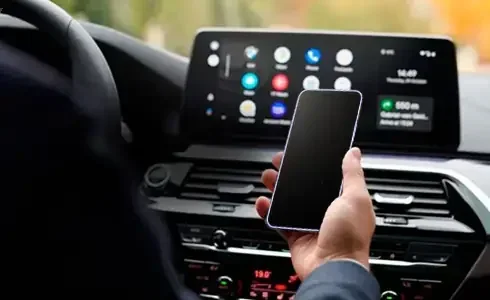
Many people rely on their smartphone to keep their car clock accurate. If you use Apple CarPlay or Android Auto, your car often mirrors the time from your phone. This is one of the easiest ways to keep your dashboard clock correct at all times.
To make this work, you need to ensure your phone’s automatic time setting is turned on. On an iPhone, go to Settings, then General, then Date & Time. Toggle on “Set Automatically.” On an Android phone, go to Settings, then System, then Date and Time. Enable “Automatic Date and Time.”
Once your phone is set to sync automatically, connect it to your car via Bluetooth or a USB cable. Your infotainment system should pull the correct time from your phone within a few seconds. This method works especially well when you travel across time zones because your phone updates instantly.
Keep in mind that some cars give you the option to choose which source to trust for the time. You might see options like “Phone,” “GPS,” or “Network.” If your car clock is wrong, try switching the source to see if that fixes the issue. Sometimes the car defaults to the wrong source, and a simple switch makes all the difference.
Benefits of Phone-Based Time Sync
Using your phone as the time source has several advantages. First, your phone constantly connects to network time servers, which means it is almost always accurate to the second. Second, your phone knows your current time zone based on cell tower data or GPS location. Third, it handles daylight saving time changes automatically in most cases.
There is one thing to watch out for, though. If your phone battery dies or you leave the car without connecting your phone, the car clock may revert to its internal backup clock. This backup clock can drift over time, so it is still a good idea to check occasionally that everything is in sync.
Adjusting Time Format: 12-Hour vs 24-Hour Clock
Another common setting people want to change is the time format. Some drivers prefer the familiar 12-hour clock with AM and PM. Others prefer the 24-hour military-style format. Most vehicles let you switch between these two options easily.
To change the time format, go back to your car’s Clock or Time Settings menu. Look for an option labeled “Time Format,” “Display Format,” or “12/24 Hour.” Toggle it to your preferred choice. The clock on your dashboard will update immediately to reflect the change.
This setting is especially useful for drivers who travel internationally or who simply find the 24-hour format clearer. Some drivers also prefer it because it removes the ambiguity of AM and PM. Whatever your preference, adjusting the format takes just a few seconds.
Quick Tips for Time Format Changes
- Check your owner’s manual if you cannot find the time format option. Some brands bury it in a submenu.
- The 24-hour format is standard in most countries outside the United States.
- Some cars display the time format choice right on the clock screen, making it easy to switch on the fly.
- If you share your car with someone who prefers a different format, you can always toggle it back.
Handling Daylight Saving Time Automatically
Daylight saving time can be a headache if your car does not handle it automatically. The good news is most vehicles made in the last decade adjust the clock forward or backward on their own. They use the time zone data from GPS or the connected network to know when the change happens.
However, older vehicles or certain models may not have this feature. If your car clock is wrong after the time change, you will need to adjust it manually. Go to the Clock Settings menu and set the correct time by hand. This is a quick fix that only takes a minute or two.
Some drivers prefer to turn off the automatic daylight saving adjustment on purpose. Maybe they live in a state or region that does not observe DST. In that case, you can disable the automatic DST toggle in your car’s time settings. This prevents the clock from changing when the rest of the country shifts.
Which States Do Not Observe Daylight Saving Time?
Arizona (except the Navajo Nation) and Hawaii are the two US states that do not observe daylight saving time. If you live in or frequently drive through these areas, you may want to disable automatic DST on your car clock. Otherwise, your car will shift the time forward or back even though it is not necessary in your location.
Other US territories like Puerto Rico, the US Virgin Islands, and American Samoa also do not observe DST. If you live in any of these places, check your car’s time settings to make sure the DST toggle is off. This keeps your clock accurate year-round without any unwanted shifts.
Troubleshooting Common Automatic Time Issues
Sometimes, even with all the right settings, your car clock still gives you trouble. Let us talk about the most common problems and how to fix them. These troubleshooting tips can save you a lot of frustration.
Problem 1: The Clock Resets After Turning Off the Car. This usually means the internal battery is dying. Most vehicles have a small backup battery that keeps the clock running when the engine is off. If this battery is weak or dead, the clock resets to a default value every time you turn off the ignition. Replacing this small battery is inexpensive and straightforward. You can often find it under the dashboard near the infotainment unit.
Problem 2: The Clock Is Stuck on the Wrong Time Zone. Try toggling the automatic time zone setting off and then back on. If that does not work, manually set the correct time zone and check if the clock updates. Sometimes the GPS antenna gets confused, especially if you have recently installed aftermarket accessories that interfere with the signal.
Problem 3: The Clock Won’t Change at All. This could be a software issue. Try restarting your infotainment system. Most systems have a soft reset option in the Settings menu. If a soft reset does not work, you may need to perform a factory reset. Check your owner’s manual for instructions on how to do this safely. A factory reset wipes your custom settings, so make sure you know your Wi-Fi passwords and Bluetooth pairings before you proceed.
Problem 4: The Clock Shows the Wrong Time After a Firmware Update. This happens more often than you might think. After a software update, the clock settings sometimes reset to defaults. Simply go back into the time settings and re-enable automatic sync or set the correct time manually. This is a quick fix and nothing to worry about.
When to Seek Professional Help
Most clock issues are easy to fix at home. But if you have tried all the troubleshooting steps and your car clock still does not work, it may be time to visit a professional. A certified mechanic or dealership technician can check the infotainment unit, the GPS antenna, and the internal backup battery. They have diagnostic tools that can pinpoint the exact cause of the problem.
Do not ignore a broken car clock for too long. While it may seem like a minor issue, an incorrect clock can affect other systems. Some vehicles tie the clock to navigation, scheduling, and maintenance reminders. If the clock is wrong, these features may not work correctly either.
Expert Tips for Keeping Your Car Clock Accurate
Keeping your car clock accurate does not have to be a constant battle. A few simple habits can make a huge difference. Here are some expert tips that experienced drivers and technicians recommend.
- Keep Your Software Updated: Manufacturers release firmware updates that fix bugs and improve sync accuracy. Check for updates at least once a month.
- Use Phone Sync When Possible: Connecting your phone via CarPlay or Android Auto gives your car a reliable time source at all times.
- Check Your Clock Monthly: Make it a habit to glance at your car clock once a month. Catching a drift early makes it easier to fix.
- Store Your Car in a Signal-Friendly Area: Parking under a clear sky or near a window helps your GPS antenna maintain a strong signal for accurate time sync.
- Replace the Backup Battery Every Few Years: This small battery is cheap and easy to replace. It prevents the clock from resetting every time you turn off the car.
- Note Your Time Zone Setting: After a long road trip, double-check that your car has updated to the correct time zone automatically.
These tips may seem small, but they add up over time. A well-maintained car clock gives you confidence and keeps your schedule running smoothly. You will never have to worry about being late because your dashboard clock was wrong.
Key Takeaways
- Automatic time settings in your vehicle use GPS, cellular data, or phone mirroring to keep your clock accurate.
- You can toggle automatic sync on or off in your infotainment system’s Clock or Time Settings menu.
- Phone-based sync through CarPlay or Android Auto is one of the most reliable ways to keep your car clock correct.
- Switching between 12-hour and 24-hour formats is quick and easy from the same settings menu.
- Daylight saving time adjustments are automatic in most modern vehicles but may need manual input in older models.
- Common clock issues like resets or wrong time zones can usually be fixed with a soft reset or a settings toggle.
- Regular maintenance like software updates and backup battery replacement keeps your car clock running accurately for years.
Conclusion
Changing your automatic time settings on your device is simpler than most people think. Whether you need to fix a wrong clock, switch time zones, or adjust the format, your vehicle’s infotainment system makes it easy. The steps are straightforward and take just a few minutes of your time.
We covered everything from understanding how automatic sync works to troubleshooting common problems. You now know how to adjust the clock on Toyota, Honda, Ford, Chevrolet, BMW, and most other major brands. You also learned how to sync your car clock with your phone and handle daylight saving time like a pro.
Take a few minutes today to check your car’s clock and time settings. Make sure automatic sync is turned on if you want the hassle-free experience. If it is not working correctly, use the troubleshooting tips we shared to get it back on track. A correct clock may seem like a small thing, but it makes a big difference in your daily driving routine.
Share this guide with friends and family who struggle with their car clock. The more people know about their vehicle’s settings, the better experience they have on the road. Safe driving and happy travels!
Frequently Asked Questions
How do I turn off automatic time on my car?
Go to your infotainment Settings menu, find the Clock or Time Settings option, and toggle off the automatic time switch. You can then set the time manually using the on-screen controls.
Once you turn off automatic time, you will need to adjust the clock yourself whenever it changes. This is useful if you live in an area that does not observe daylight saving time or if the automatic sync keeps giving you the wrong time.
Why does my car clock reset after I turn off the engine?
This usually happens because the internal backup battery in your vehicle is weak or dead. The backup battery keeps the clock running when the car is off. When it fails, the clock resets to a default value like 12:00 every time you start the car.
Replacing this small battery is inexpensive and easy. You can find it under the dashboard near the infotainment unit, or have a mechanic replace it for you. After the new battery is installed, your clock should hold the correct time again.
Can I change the time zone on my car manually?
Yes, you can. Go to your car’s Clock or Time Settings menu and look for the Time Zone option. You can toggle off automatic time zone detection and select your current time zone from the list.
This is especially helpful when you are traveling to a different time zone. Some cars update the time zone automatically based on GPS location, but older models may require you to set it by hand.
Does Apple CarPlay automatically sync the time to my car?
Yes, Apple CarPlay mirrors your iPhone’s clock to your car’s infotainment display. As long as your iPhone has automatic time enabled in its settings, your car clock should update accordingly.
If the time is not syncing, make sure your phone’s automatic date and time setting is turned on. Also check that your Bluetooth connection is stable. A weak connection can sometimes cause the time sync to fail.
How often should I check my car clock for accuracy?
It is a good idea to check your car clock once a month. A quick glance when you start the car is usually enough. If you notice the clock is off, adjust the settings right away.
Regular checks are especially important if your car does not have automatic time sync or if you frequently drive through different time zones. Catching a drift early prevents it from becoming a bigger problem later.
What should I do if my car clock will not change at all?
First, try a soft reset of your infotainment system. Most car systems have a restart option in the Settings menu. If that does not work, try disconnecting your phone and reconnecting it to rule out a phone sync issue.
If neither of those works, you may need a factory reset. Check your owner’s manual for instructions. A factory reset will restore your car’s system to its original settings, which often fixes persistent clock problems. Just remember to back up any important paired devices or saved data first.