How Do I Update My BMW Navigation Maps for Free Today
Updating your BMW navigation maps for free is easier than you think. You can use BMW ConnectedDrive, visit a dealer, or download maps online without spending a dime. This guide shows you every method so your GPS stays accurate and reliable.
Key Takeaways
- BMW ConnectedDrive: The easiest and most common way to update maps for free.
- Dealer Updates: Many BMW dealers offer free map updates during routine visits.
- Online Downloads: BMW occasionally provides free map downloads on their website.
- USB Method: You can update maps using a USB drive and BMW map files.
- Regular Updates Matter: Outdated maps lead to wrong directions and wasted time.
- Check Version First: Always verify your current map version before updating.
📑 Table of Contents
- How to Update Your BMW Navigation Maps for Free
- Why Keeping Your BMW Navigation Maps Updated Matters
- How to Check Your Current BMW Map Version
- Free Methods to Update BMW Navigation Maps
- Common Problems When Updating BMW Navigation Maps
- How Often Should You Update Your BMW Navigation Maps?
- Expert Tips for a Smooth BMW Map Update
- Is It Worth Paying for BMW Map Updates?
- Conclusion
How to Update Your BMW Navigation Maps for Free
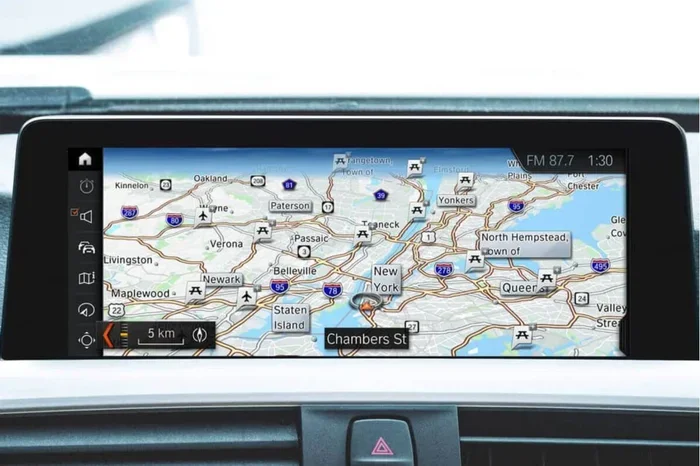
Your BMW is a precision machine. And just like any machine, it needs regular care. One of the most important yet overlooked aspects of BMW ownership is keeping your navigation maps current. BMW navigation map updates ensure you get accurate directions, avoid road closures, and find new businesses and points of interest.
Here is the good news. You do not need to pay hundreds of dollars for map updates. There are several ways to update BMW navigation maps for free. Whether you use the latest iDrive system or an older setup, free options exist. In this guide, we walk you through every method step by step. You will learn how to check your current map version, use BMW ConnectedDrive, visit your dealer, and even update maps using a USB drive.
Think about how often roads change. New highways open. Streets get renamed. Businesses move or close. If your maps are outdated, your BMW navigation system cannot guide you properly. This is especially true if you rely on your car for daily commutes or long road trips. Keeping your maps fresh is one of the simplest things you can do for your vehicle.
So let us dive in. By the end of this article, you will know exactly how to update BMW navigation maps without spending a single penny. We also share common mistakes to avoid and expert tips to keep your system running smoothly.
Why Keeping Your BMW Navigation Maps Updated Matters
Some BMW owners ignore map updates for years. They think the old maps still work fine. But that is a risky assumption. Roads change constantly. Here is why staying current with your BMW navigation map update schedule really matters.
Accurate Directions Save Time
Outdated maps can send you down closed roads or construction zones. You waste fuel. You waste time. You add stress to your drive. Updated maps contain the latest road data, so your system routes you efficiently every time.
New Businesses and Points of Interest
New restaurants, gas stations, and shops open all the time. Updated maps include these new points of interest. Your navigation system can then guide you to them with ease. This is especially helpful when you are traveling in unfamiliar areas.
Safety Improvements
BMW navigation systems also include updated speed limit data, dangerous intersection warnings, and traffic flow information. When you keep your maps current, you get the latest safety features. This helps you drive more safely on every trip.
If you enjoy taking long drives with family or friends, accurate navigation becomes even more critical. A reliable GPS system keeps everyone on track and reduces the need for constant rerouting. Planning trips with a full car is much easier when your navigation is working perfectly.
How to Check Your Current BMW Map Version
Before you update, you need to know what you have. Checking your current map version takes just a few minutes. Here is how to do it.
Method 1: Through the iDrive System
Turn on your BMW. Press the menu button on your iDrive controller. Navigate to Settings. Then look for Navigation or Map Information. Your current map version number will be displayed on screen. Write it down or take a photo with your phone.
Method 2: Check the BMW ConnectedDrive Portal
You can also check your map version online. Visit the BMW ConnectedDrive website. Log in with your BMW account. Go to your vehicle profile. The navigation software version is listed there. This method works well if you want to compare your version with the latest available.
Method 3: Visit Your BMW Dealer
Your local BMW dealer can check your map version in seconds. They have diagnostic tools that read your system directly. Many dealers will do this for free during routine service visits. It is a great way to stay on top of your BMW navigation system health.
Knowing your current version helps you decide whether an update is available. It also prevents you from installing unnecessary updates. Always note your version number before starting any update process.
Free Methods to Update BMW Navigation Maps
Now for the part you have been waiting for. How do you actually update your BMW maps for free? There are several proven methods. Let us go through each one in detail.
Method 1: BMW ConnectedDrive (Over-the-Air Updates)
BMW ConnectedDrive is the most convenient way to update BMW navigation maps. This service uses your car’s built-in SIM card and internet connection. Here is how it works.
First, make sure your BMW has an active ConnectedDrive subscription. Most newer BMW models come with this service included for a trial period. Once connected, your system can receive over-the-air updates directly from BMW servers.
To check for updates, go to your iDrive menu. Select Settings. Then choose ConnectedDrive. Look for Software Update or Map Update. If a new map version is available, you will see a download option. Simply follow the on-screen prompts.
The download happens while you are parked. The installation usually takes 15 to 30 minutes. During this time, your navigation system will be unavailable. Plan your update accordingly. Do not start an update right before you need to drive somewhere.
Method 2: Visit Your BMW Dealer for a Free Update
Many BMW dealers offer free map updates as part of their customer service. This is one of the most overlooked methods. Here is what you need to know.
Call your local BMW dealer and ask if they provide complimentary map updates. Most dealers in the United States and Europe do offer this service. They have the tools and map files needed to update your system quickly.
You do not even need to book a full service appointment. Many dealers will update your maps during a quick visit. The process usually takes less than an hour. Some dealers may update your maps for free if you have an active warranty or service plan.
This method is especially helpful if your car does not have internet connectivity. Older BMW models without ConnectedDrive can still receive dealer updates. It is a hands-off approach that requires very little effort from you.
While you are at the dealer, it is worth asking them to check your car audio and infotainment systems as well. A quick check of all electronics ensures everything is working at its best.
Method 3: Download Maps via BMW Website
BMW occasionally makes map updates available for download on their official website. This method works best for tech-savvy BMW owners. Here is the process.
Visit the BMW website and navigate to the owner portal. Look for Navigation Software or Map Updates. If a download is available, you can get the map files directly. These files are typically saved to a USB drive.
You then insert the USB drive into your BMW’s USB port. The navigation system recognizes the update file and prompts you to install. Follow the on-screen instructions to complete the process.
Not all BMW models support this method. It depends on your navigation system version and model year. Check your owner’s manual or contact BMW customer service to confirm compatibility before downloading.
Method 4: Use a USB Drive with Map Files
This is the most hands-on method but also the most reliable. You download or obtain the map files and transfer them to a USB drive. Then you install them directly in your BMW.
Here is a step-by-step guide for this method.
- Check your BMW owner’s manual for the correct USB format. Most BMW systems require FAT32 formatting.
- Download the latest map files from a trusted source. BMW’s website is the safest option.
- Copy the map files to your USB drive. Do not rename or move the files.
- Insert the USB drive into your BMW’s USB port while the car is parked.
- Navigate to the map update section in your iDrive system.
- Follow the prompts to install the update.
- Wait for the installation to complete. Do not turn off the car during this process.
This method gives you full control over the update process. It also works for BMW models that do not have internet connectivity. Just be careful to use genuine BMW map files. Third-party files can cause system errors and may void your warranty.
Common Problems When Updating BMW Navigation Maps
Even with the best instructions, things can go wrong. Here are the most common issues BMW owners face when updating navigation maps and how to fix them.
Update Fails to Download
If your ConnectedDrive update fails to download, check your internet connection first. Your BMW needs a stable signal. Try moving your car to a different location with better reception. Restarting the iDrive system often resolves temporary glitches. Simply hold the power button for 10 seconds and restart.
USB Drive Not Recognized
If your BMW does not recognize the USB drive, try reformatting it. Use FAT32 format, which is the most compatible. Also, make sure the USB drive is not too large. Most BMW systems work best with drives under 64GB. Remove any other files from the drive before copying map files.
Installation Freezes or Stalls
If the installation freezes, do not panic. Turn off the car and wait a few minutes. Restart and check the status. In most cases, the system resumes from where it left off. If the problem persists, visit your BMW dealer. They have professional tools to complete the installation safely.
Maps Show Incorrect Locations After Update
Sometimes newly updated maps display incorrect locations. This usually happens if the update was interrupted. Delete the partial update and try again. If the problem continues, a factory reset of the navigation system may be needed. Your dealer can perform this reset quickly and at no cost.
Dealing with navigation issues can be frustrating, especially when you are on the road. Reducing windshield glare with quality film can also help your navigation screen remain clear and easy to read during sunny drives.
How Often Should You Update Your BMW Navigation Maps?
BMW releases new map data several times a year. The frequency depends on your region and the update schedule BMW follows. As a general rule, you should update your maps at least once or twice a year.
If you drive frequently in areas with rapid development, consider updating every six months. New subdivisions, shopping centers, and road changes happen constantly. Keeping your maps current ensures you always have the best routing data available.
Set a calendar reminder to check for updates. This simple habit takes just a few minutes but saves you from many headaches down the road. Think of it as regular maintenance for your car, just like checking tire pressure or changing engine oil.
Expert Tips for a Smooth BMW Map Update
Here are some expert tips that make the BMW navigation map update process smoother and more reliable.
- Always back up your current maps. Before installing any update, save your existing map data if possible. This gives you a fallback option if something goes wrong.
- Update during off-peak hours. Choose a time when you do not need your car for several hours. Map installations can take 30 minutes or more.
- Keep your car plugged in. Ensure your BMW battery is fully charged before starting an update. A power loss during installation can corrupt your navigation system.
- Use genuine BMW files only. Never download map files from unofficial sources. These can contain errors or malware that damage your system.
- Clear cache before updating. If your iDrive system feels slow, clearing the cache before an update helps the process run more smoothly.
- Read the release notes. BMW sometimes includes important notes with map updates. These notes tell you about known issues or changes in the new version.
Following these tips reduces the risk of problems significantly. Most BMW owners find that their updates go smoothly when they follow these simple precautions.
Is It Worth Paying for BMW Map Updates?
BMW sometimes charges for map updates, especially for older models or extended warranties. But the truth is, you can often get updates for free using the methods described above. Paying for map updates should be your last resort, not your first option.
BMW charges vary widely. Some dealers quote $150 to $300 for a map update. That is a steep price when you can get the same update for free through ConnectedDrive or a dealer visit. Always explore free options first before spending money.
If you are considering a BMW navigation system upgrade or a new car with better navigation, that is a different conversation. But for simply keeping your existing maps current, free methods work very well for most BMW owners.
Also consider your driving habits. If you rarely travel to new areas, you may not need frequent updates. But if you use your BMW for daily navigation or regular road trips, keeping maps current is essential for a smooth driving experience.
Conclusion
Updating your BMW navigation maps for free is not only possible, it is straightforward. You have multiple options at your fingertips. Use BMW ConnectedDrive for over-the-air updates. Visit your dealer for a complimentary map refresh. Download files from the BMW website and install them via USB. Each method is reliable and costs nothing.
The key is to stay proactive. Check your map version regularly. Set reminders. Do not wait until your directions are wrong before you think about updating. A well-maintained navigation system makes every drive better, safer, and more enjoyable.
Take a few minutes today to check your BMW map version. Follow the steps in this guide. You will be glad you did. Your BMW navigation system will reward you with accurate directions and peace of mind on every journey.
Frequently Asked Questions
Can I update my BMW navigation maps without internet?
Yes, you can. The USB method works without any internet connection. You simply download map files on a computer, transfer them to a USB drive, and install them in your BMW. This method is ideal for older BMW models without ConnectedDrive or internet capability.
How long does a BMW navigation map update take?
Most updates take between 15 and 45 minutes. The exact time depends on the size of the update and your BMW model. Over-the-air updates through ConnectedDrive are usually faster than USB installations. Always make sure your car is parked and powered during the process.
Are BMW map updates really free?
Yes, BMW map updates are free through ConnectedDrive and most dealer services. BMW provides these updates as part of your ownership experience. Be cautious of third-party services that charge for what BMW offers for free directly.
What happens if my BMW map update fails?
If an update fails, your navigation system usually remains functional with your existing maps. Restart the system and try again. If the problem persists, visit your BMW dealer. They can complete the update using professional diagnostic tools at no extra cost.
How do I know when my BMW maps need updating?
Your BMW will usually notify you when a new map version is available through the ConnectedDrive system. You can also manually check by going to Settings and then Navigation in your iDrive menu. Comparing your version number with the latest available version online is another reliable method.
Can I use my BMW navigation while maps are updating?
No, you should not use the navigation system during an update. The system needs full attention to install the new map data correctly. Wait until the installation is complete and the system restarts. Using the car during an update can cause errors or corrupt the installation.