How Do I Know If My Dash Cam Is On and Working Properly
Figuring out How Do I Know If My Dash Cam Is On is simpler than most drivers think. Your dash cam has several telltale signs that show it is recording, from LED indicator lights to screen displays and audible beeps. In this guide, you will learn quick and easy ways to confirm your dashboard camera is active and capturing footage correctly.
You just got a dash cam for your car, and you feel good about it. You know it can capture surveillance footage if something unexpected happens on the road. But there is one thing bugging you: how do I know if my dash cam is on? It sounds like a simple question, but many drivers find themselves guessing whether their dashboard camera is recording or not.
The good news is that figuring this out is not hard at all. Most modern dash cams come with clear signals that tell you they are working. Whether it is a tiny LED indicator, a beep, or a live preview on a screen, your device is trying to talk to you. You just need to know what to look for.
In this article, we will walk you through every way to check if your dash cam is on and working properly. We will cover indicator lights, screen displays, sound signals, and even how to use your phone to check status. By the end, you will never have to wonder again whether your car camera is doing its job.
Key Takeaways
- LED lights are your best friend: Most dash cams have small lights that flash or stay solid when the device is recording.
- Check the screen display: If your dash cam has a screen, it will show live footage or recording status icons.
- Listen for beeps or sounds: Many dash cams emit short beeps when they start recording or detect motion.
- Use the mobile app: Wi-Fi enabled dash cams let you check status through a companion mobile app on your phone.
- Verify the power source: A dash cam needs power from your car’s cigarette lighter or a hardwire kit to stay on.
- Review saved footage: The best way to confirm it is working is to check recorded files on your memory card.
- Parking mode matters: Your dash cam may still record in parking mode if it has a G-sensor and motion detection feature.
📑 Table of Contents
How Do I Know If My Dash Cam Is On?
The first step to feeling safe on the road is knowing your dash cam is active. When you ask yourself “How do I know if my dash cam is on,” the answer depends on your specific model. However, almost all dash cams share a few common ways to show they are recording.
Some dash cams have small lights on the front or back of the unit. These lights change color or blink when the camera starts capturing surveillance footage. Other models have a tiny screen that shows a live view of what the camera sees. And some dash cams make a short sound when they begin recording.
Understanding these basic signals is the foundation of dash cam confidence. Once you know what to look for, checking your device becomes a quick habit. Let us break down each sign in detail so you can spot them easily.
Visual LED Indicators
Most dash cams have a small LED indicator on the front or back of the unit. This tiny light is one of the easiest ways to tell if your camera is on. When the dash cam starts recording, the LED will usually glow or blink in a specific color.
For example, a solid green light often means the camera is recording normally. A blinking red light might mean it is in parking mode or waiting to detect motion. Check your user manual to learn what each light color means for your specific model.
Some dash cams also have a secondary LED on the back. This can help you see the status from inside your car. If you notice the light is off, your dash cam may not be receiving power. In that case, check your power source and cable connection first.
Screen Display Checks
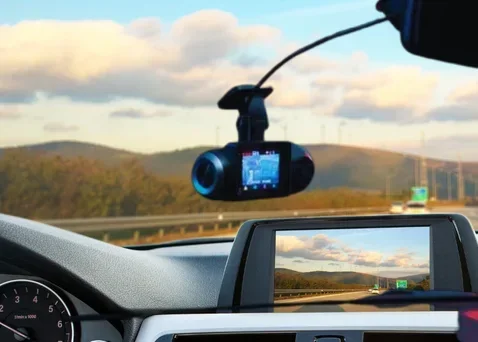
If your dash cam has a built-in screen, you are in luck. The screen display gives you real-time feedback about what the camera is doing. When the dash cam is on and recording, you will usually see a live feed or a small recording icon on the screen.
Many screens also show the current date, time, and GPS tracking data. You might see a red dot or circle in the corner of the screen that indicates recording is active. Some models even display the file name or resolution of the current video clip.
If the screen is black or shows a menu instead of a live feed, your dash cam might be in standby mode. Simply press the power button or wait for the auto-start feature to kick in when you turn your car on.
Common Signs Your Dash Cam Is Active
Beyond lights and screens, there are other signs that your dashboard camera is working. These signs are easy to miss if you do not know what they are. Let us look at the most common ones.
Audible Beeps and Sounds
Many dash cams make a short beep when you start the car and the camera turns on. This audible beep is your first clue that the device is active. Some models also beep when they begin loop recording or when a new file is saved to the memory card.
If you hear a beep every time you start your engine, that is a good sign. However, some drivers turn off the sound alerts to avoid noise. If your dash cam is quiet, do not worry. You can still check the other signs like lights and screens to confirm it is on.
GPS and Speed Data on Screen
Dash cams with GPS tracking show your speed and location on the screen or in the recorded video file. If you see speed data or a moving map on your dash cam display, the camera is definitely active.
This feature is especially useful for incident recording. If you ever need to prove your speed or location during an accident, GPS data adds a strong layer of evidence. The GPS indicator usually looks like a small satellite icon on the screen.
Wi-Fi and Mobile App Connection
Many modern dash cams offer Wi-Fi connectivity and a companion mobile app. You can connect your phone to the dash cam through Wi-Fi and check if the camera is recording. The app usually shows a live preview and status indicators.
Some apps even let you download surveillance footage directly to your phone. If you can connect to the dash cam and see a live feed, your device is on and working. This is a great way to double-check before you start a long drive.
Understanding Dash Cam Indicator Lights
The LED indicator is the most universal way to know if your dash cam is on. But the meaning of each light can vary from brand to brand. Here is a closer look at what different light behaviors mean.
| Light Behavior | What It Means |
|---|---|
| Solid green light | Dash cam is on and recording normally |
| Blinking green light | Dash cam is in standby or Wi-Fi mode |
| Solid red light | Recording in progress or parking mode active |
| Blinking red light | Motion detection is on or G-sensor triggered |
| No light at all | Dash cam is off or not receiving power |
Not all dash cams follow the same color scheme, so always check your manual. Some brands use blue lights or white lights instead of green or red. The key is to learn what your specific model does.
If your dash cam light stays off even when your car is running, there may be a power issue. Check that the cable is firmly plugged into the cigarette lighter or fuse box. A loose connection is one of the most common reasons a dash cam appears to be off.
What the G-Sensor Light Means
The G-sensor is a built-in feature that detects sudden movement or impact. When the G-sensor is triggered, your dash cam may flash a light or change its LED behavior. This is designed to protect the current video file from being overwritten by loop recording.
If you see a brief flash or color change in your LED indicator after a bump or sudden stop, the G-sensor did its job. It marked the file as important so you can keep that incident recording safe. You can usually reset the G-sensor through the dash cam menu if needed.
Quick Tip: Place a small piece of colored tape next to the LED light if it is hard to see from the driver’s seat. This simple trick makes it much easier to spot the status light while driving.
How to Check Your Dash Cam Settings
Sometimes the best way to confirm your dash cam is working is to check its settings. Most dash cams have a menu system that lets you adjust recording options and verify the current status.
Accessing the On-Screen Menu
Press the menu or settings button on your dash cam to access the on-screen options. Look for a status or info section. This area usually shows whether recording is active, how much storage is left on the memory card, and what resolution the front-facing camera is using.
If you see options like “Loop Recording: On” and “Video Quality: 1080p,” your dash cam is powered up and ready. Some menus also show the current GPS tracking status and whether parking mode is enabled.
Adjusting Recording Settings
While in the menu, you can also check your video quality settings. Higher resolution means clearer footage but uses more space on the memory card. A good balance for most drivers is 1080p or 4K resolution.
Make sure loop recording is turned on. This feature automatically overwrites old files when the card is full, so you never run out of space. Without loop recording, you would have to manually delete old footage to make room for new clips.
Also check if motion detection is enabled. This feature keeps the camera lightly active even when the car is parked, so it can capture any movement in front of the lens. It is a great way to protect your car while it sits in a parking lot.
Common Mistake: Many drivers forget to check if their memory card is full or corrupted. A full or damaged card can stop recording without any obvious warning. Make it a habit to review your stored files once a month.
Troubleshooting: Dash Cam Won’t Turn On
If you have tried all the signs above and your dash cam still does not seem to be on, do not panic. There are a few common reasons why a dash cam might not start, and most are easy to fix.
Check the Power Connection
The most common reason a dash cam will not turn on is a loose or damaged power cable. Make sure the cable is firmly plugged into your car’s cigarette lighter or fuse box. If you are using a hardwire kit, check that the connection to the fuse box is secure.
Try unplugging the cable and plugging it back in. Sometimes the connection just needs to be reseated. Also, check that your car’s power outlet is working by plugging in another device, like your phone charger.
Inspect the Memory Card
A faulty memory card can prevent your dash cam from starting properly. Remove the card and check for visible damage or dirt on the contacts. If the card looks fine, try reinserting it firmly.
If the dash cam still will not turn on, try formatting the memory card through the dash cam menu. Formatting clears any corrupted files and often fixes startup issues. Always use a high-quality memory card rated for continuous writing to avoid problems.
Temperature and Weather Issues
Extreme heat or cold can affect how your dash cam performs. In very hot weather, the device might shut down to protect its internal parts. In very cold weather, the battery may not hold a charge well.
If your dash cam struggles in certain temperatures, try moving it to a shadier spot on the windshield or using a battery backup unit. Some dash cams come with built-in capacitors instead of batteries, which handle temperature extremes better.
Expert Insight: “I always tell my customers to test their dash cam before every road trip. A thirty-second check of the LED light and a quick look at the mobile app can save you from losing critical incident recording when you need it most.” — Car Safety Specialist
Tips to Keep Your Dash Cam Running Properly
Once you know how to check if your dash cam is on, the next step is keeping it in great shape. A well-maintained dash cam gives you reliable incident recording every time you hit the road.
Regular Maintenance Checks
Make it a habit to glance at your dash cam every time you get in the car. Look for the LED indicator or check the screen display to confirm it is active. This simple habit takes only a few seconds but gives you peace of mind.
Clean the camera lens once a week with a soft cloth. Dust and fingerprints can blur your video quality and make footage useless when you need it most. A clean lens ensures your front-facing camera and rear camera capture clear images day and night.
Here is a quick maintenance checklist you can follow:
- Check the LED indicator when you start the car
- Wipe the lens with a microfiber cloth weekly
- Review saved footage once a month
- Update firmware every few months
- Replace the memory card annually
Keep Firmware Updated
Many dash cam brands release firmware updates that improve performance and fix bugs. Check the manufacturer’s website or mobile app for updates every few months. Updating your firmware can also add new features like better night vision or improved motion detection.
Use a Quality Memory Card
Your dash cam writes and deletes files constantly through loop recording. A cheap or slow memory card can cause errors or lost footage. Look for cards rated for high endurance and continuous write speeds, such as Class 10 or U3 rated cards.
A good memory card is one of the smallest investments you can make for reliable dash cam performance. It ensures your surveillance footage is saved properly and ready when you need it.
Consider a Hardwire Kit for Parking Mode
If you want your dash cam to work even when the car is off, consider installing a hardwire kit. This device connects your dash cam directly to the car’s electrical system, giving it a constant power source without draining your car battery.
With a hardwire kit, your dash cam can stay in parking mode and use motion detection and the G-sensor to capture any incidents while your car is parked. This is especially valuable if you park on the street or in areas with high theft risk.
Leverage Wi-Fi and the Mobile App
Take advantage of Wi-Fi connectivity to stay connected with your dash cam. The companion mobile app lets you view live status, download clips, and adjust settings from your phone. You can even check if your dash cam is recording before you leave the house.
Some apps also send notifications when the G-sensor is triggered or when motion detection captures something unusual. This real-time alert system adds an extra layer of security to your car camera setup.
Keeping your dash cam in top shape is not complicated. With a few simple habits and the right accessories, your dashboard camera will be ready to capture everything you need. The key is to stay proactive and check your device regularly.
Conclusion
Knowing how do I know if my dash cam is on does not have to be a mystery. Your dash cam gives you plenty of signals to confirm it is working. From the LED indicator and screen display to beeps and mobile app alerts, you have multiple ways to verify your device is active.
Make it a simple part of your driving routine to check these signs before you hit the road. A quick glance at the light or a look at your phone app can save you from the headache of missing important surveillance footage when you need it most.
Take a few minutes today to learn your specific dash cam’s signals. Check the power source, test the memory card, and explore the settings menu. When you know your car camera is working, you drive with confidence. That peace of mind is worth every second of effort.
Frequently Asked Questions
How do I know if my dash cam is recording while driving?
Look for a solid or blinking LED indicator on the dash cam unit. If your dash cam has a screen, you should see a live feed or a recording icon. You can also check the mobile app for a live preview and status confirmation.
Why is my dash cam not turning on when I start the car?
The most common reason is a loose power cable. Check that the cable is firmly connected to the cigarette lighter or fuse box. Also make sure the car’s power outlet is working by testing it with another device like a phone charger.
Can I check my dash cam status from my phone?
Yes, if your dash cam has Wi-Fi connectivity, you can use the companion mobile app to see a live feed and check the recording status. The app also lets you download footage and adjust settings remotely.
What does it mean when my dash cam light blinks red?
A blinking red light usually means the dash cam is in parking mode or has detected motion. It can also indicate that the G-sensor was triggered by a sudden impact. Check your user manual for the exact meaning for your specific model.
How can I verify that my dash cam saved footage correctly?
The best way is to review the files on your memory card. Remove the card, plug it into a computer, and check for video files. You can also use the mobile app to browse and download clips directly from the dash cam.
Does parking mode keep my dash cam recording all the time?
Parking mode uses motion detection and the G-sensor to record only when something happens, which helps save battery and storage. It does not record continuously unless you configure it that way. A hardwire kit provides a stable power source for reliable parking mode operation.