How Do I Get My iPhone to Connect to My Car Bluetooth
Learning how to get your iPhone to connect to your car Bluetooth is easier than you think. This guide walks you through every step, from initial pairing to fixing common connection problems. You will also discover tips to make your iPhone car integration smoother and more reliable every day.
Have you ever gotten into your car, ready to hit the road, only to realize your phone won’t connect? It is frustrating, right? You are not alone. How Do I Get My iPhone to Connect to My Car Bluetooth is one of the most searched questions by iPhone users every single day. Whether you are trying to stream music, take calls, or use Apple CarPlay, a solid Bluetooth connection is the key. The good news is that the process is straightforward once you know the steps. In this guide, we will walk you through everything from basic pairing to advanced troubleshooting. By the end, you will feel confident connecting your iPhone to any car stereo.
Your iPhone and your car are designed to work together. Apple has spent years making iPhone car connection seamless. But sometimes things do not go as planned. Maybe the Bluetooth settings are hidden. Maybe your car stereo is not in pairing mode. Or maybe a software glitch is getting in the way. Whatever the reason, this article covers it all. We will break down each step in plain language so anyone can follow along. No tech degree required. Let us get your iPhone and car talking to each other.
Key Takeaways
- Simple Pairing Process: Following the right steps makes connecting your iPhone to your car Bluetooth quick and painless.
- Troubleshooting Helps: Restarting devices, resetting network settings, and updating software fixes most connection issues.
- Apple CarPlay Boosts the Experience: Using CarPlay gives you a richer, more integrated driving experience.
- Keep Things Updated: Regular software updates on both your iPhone and car stereo prevent Bluetooth problems.
- USB Backup Works: When Bluetooth fails, a USB cable can save the day for music and calls.
- Clean Old Pairings: Removing unused paired devices keeps your Bluetooth list fresh and responsive.
📑 Table of Contents
- Why Your iPhone and Car Bluetooth Need to Talk to Each Other
- Step-by-Step Guide to Pairing Your iPhone with Your Car
- Common Reasons iPhone Won’t Connect to Car Bluetooth
- How to Fix iPhone Bluetooth Connection Problems
- Getting the Most Out of iPhone Car Bluetooth
- Expert Tips for a Seamless iPhone Car Connection
- Quick Tips Summary
- Conclusion
Why Your iPhone and Car Bluetooth Need to Talk to Each Other
Bluetooth is a wireless technology that lets devices communicate over short distances. When your iPhone connects to your car via Bluetooth, you unlock a whole world of convenience. You can make and receive phone calls without touching your phone. You can listen to your favorite playlists through your car speakers. You can even get turn-by-turn directions through your car’s audio system. Connecting iPhone to car Bluetooth also keeps your hands on the wheel and your eyes on the road, which is a huge safety benefit.
Modern cars come with built-in Bluetooth support. Even older vehicles can often be upgraded with an aftermarket Bluetooth adapter. The connection process relies on a simple pairing mechanism. Your iPhone broadcasts a signal. Your car stereo picks it up. You confirm the connection on both ends. Once paired, your devices remember each other and reconnect automatically. This is why understanding the basics of iPhone Bluetooth settings is so important. When you know how the system works, fixing problems becomes much easier.
There are a few things that make Bluetooth connection work smoothly. First, both devices need to have Bluetooth turned on. Second, they need to be within range, usually about 30 feet. Third, neither device should be connected to too many other devices at once. Keeping these factors in mind will save you a lot of trouble. Now let us move on to the actual pairing process.
Step-by-Step Guide to Pairing Your iPhone with Your Car
The pairing process is the same for most iPhone and car combinations. Follow these steps carefully and you will be connected in just a few minutes. How Do I Get My iPhone to Connect to My Car Bluetooth becomes a simple checklist when you know what to do.
Turn on Bluetooth on Your iPhone
The first step is to make sure Bluetooth is enabled on your iPhone. Open the Settings app. Tap on Bluetooth. Toggle the switch to turn it on. You will see a blue indicator when Bluetooth is active. Your iPhone will immediately start searching for nearby devices. You can also swipe down from the top right corner of your screen to open Control Center. Tap the Bluetooth icon to turn it on quickly. This is the fastest way to get started.
While you are at it, make sure your iPhone is not in Airplane Mode. Airplane Mode disables all wireless connections, including Bluetooth. If Airplane Mode is on, Bluetooth will not work no matter what you do. A quick check of your settings can save you a lot of headaches. Also, make sure your iPhone has enough battery life. Low power mode does not usually affect Bluetooth, but a dead phone will not connect to anything.
Put Your Car in Pairing Mode
Next, you need to make your car stereo discoverable. The exact steps vary by car brand and model, but the general process is similar. Start your car engine or turn the ignition to accessory mode. Go to your car’s infotainment system. Look for a Settings menu or a Bluetooth option. Select Pair New Device or Search for Devices. Your car stereo is now broadcasting a signal that your iPhone can detect.
Some cars have a dedicated Bluetooth button on the steering wheel or the infotainment panel. Check your car’s owner manual if you are unsure where to find the pairing option. Popular brands like Ford, Toyota, Honda, and BMW all have slightly different menus, but the core process is the same. Once your car is in pairing mode, move on to the next step.
Find Your Car on Your iPhone
Now go back to your iPhone. You should see your car’s name appear in the Other Devices section under Bluetooth. Tap on the car name to start pairing. Your iPhone will send a connection request to your car stereo. Within a few seconds, both devices should confirm the connection. You may see a checkmark next to the car name on your iPhone. The car screen might also display a confirmation message.
If your car does not appear on your iPhone, do not panic. This is a common issue. Try toggling Bluetooth off and back on. Also, make sure your car is still in pairing mode. Sometimes moving your iPhone closer to the car stereo helps. The Bluetooth signal is strongest when the devices are nearby. Once you see your car name, tap it and the magic happens.
Enter the Pairing Code if Required
Some car stereos require a Bluetooth pairing passkey or PIN. If your car asks for a code, look at the car screen. It might display a four- or six-digit number. Enter that same number on your iPhone when prompted. This step verifies that both devices are trying to connect to each other. It is a security feature that prevents unauthorized connections.
In most cases, the default passkey is simple, like 0000 or 1234. Check your car’s manual for the default pairing code. Once you enter the correct code, the pairing completes. Your iPhone and car are now linked. The next time you get in the car, they should reconnect automatically. That is the beauty of Bluetooth car connection once it is set up.
Common Reasons iPhone Won’t Connect to Car Bluetooth
Even after following all the steps, sometimes the connection just will not work. This is incredibly common and usually easy to fix. Understanding the root causes helps you solve the problem faster. Here are the most frequent reasons iPhone not connecting to car Bluetooth fails.
Bluetooth Is Turned Off
This sounds obvious, but it happens more than you would think. Someone toggles Bluetooth off accidentally, and then wonders why the connection is not working. Always double-check that Bluetooth is turned on in your iPhone Settings. Also check your car stereo. Some cars have a separate Bluetooth on/off switch in the settings menu. A quick toggle on both ends often resolves the issue instantly.
Your Car Is Not Discoverable
If your car stereo is not in pairing mode, your iPhone will not find it. This is the number one reason for failed connections. Make sure your car is actively searching for new devices. On most systems, you need to navigate to Settings > Bluetooth > Pair New Device. Some cars only stay discoverable for a few minutes. If too much time passes, you may need to start the pairing process again.
Too Many Devices Are Paired
Your car stereo can usually remember multiple paired devices. But if the list gets too long, it can cause conflicts. Your iPhone might not connect because the car is trying to pair with a different device first. This is a common Bluetooth connectivity issue. The fix is simple. Go into your car stereo settings and delete old paired devices you no longer use. Keep the list clean and short. This helps your iPhone connect faster and more reliably.
Software Is Outdated
Both your iPhone and your car stereo run on software. Outdated software can cause compatibility problems. Apple regularly releases iOS updates that fix Bluetooth bugs. Similarly, car manufacturers push infotainment updates from time to time. Keeping both devices updated is one of the best ways to prevent connection issues. Check for updates in Settings > General > Software Update on your iPhone.
How to Fix iPhone Bluetooth Connection Problems
When pairing does not work or the connection drops frequently, you need to dig deeper. These troubleshooting steps will solve the vast majority of iPhone car Bluetooth problems. Try them in order for the best results.
Restart Both Devices
The oldest trick in the book is still the most effective. Turn off your iPhone completely. Turn off your car engine and wait a minute. Then start the car again and turn your iPhone back on. This clears temporary glitches and refreshes the Bluetooth connection. Many users report that a simple restart fixes their sync iPhone to car issues immediately. It takes less than a minute and requires no technical knowledge.
Forget the Device and Re-pair
If restarting does not work, try removing the car from your iPhone’s Bluetooth memory. Go to Settings > Bluetooth. Find your car name and tap the i icon next to it. Select Forget This Device. Do the same on your car stereo by deleting the iPhone from its paired list. Then start the pairing process from scratch. This fresh start often resolves stubborn connection issues. Think of it as giving both devices a clean slate.
Update Your iPhone Software
Apple releases iOS updates regularly. These updates often include bug fixes for Bluetooth connectivity. Make sure your iPhone is running the latest version of iOS. Go to Settings > General > Software Update and install any available updates. After updating, restart your iPhone and try connecting again. This simple step solves many iPhone connectivity issues that users struggle with for weeks.
Reset Network Settings
If none of the above works, resetting your network settings can help. Go to Settings > General > Transfer or Reset iPhone > Reset > Reset Network Settings. This will clear all saved Wi-Fi passwords, VPN settings, and Bluetooth pairings. You will need to reconnect to your Wi-Fi network afterward. But it often fixes deep Bluetooth problems that nothing else can touch. Use this as a last resort before visiting a mechanic or Apple Store.
Getting the Most Out of iPhone Car Bluetooth
Once your iPhone is connected, you can do so much more than just make calls. Taking full advantage of your iPhone car integration makes every drive more enjoyable and safer.
Use Apple CarPlay for a Better Experience
Apple CarPlay is Apple’s system that mirrors your iPhone interface on your car’s screen. It gives you access to Maps, Music, Messages, and more. Many new cars support wireless CarPlay, which means no cables are needed. To use CarPlay, make sure your car supports it and your iPhone is running iOS 7.1 or later. When your iPhone connects via Bluetooth, CarPlay should launch automatically. If it does not, look for the CarPlay icon on your car screen and tap it.
CarPlay makes hands-free calling and navigation seamless. You can use Siri to send messages, make calls, and get directions without ever touching your phone. This is a huge safety upgrade. Even if your car is older, you can often add CarPlay support with an aftermarket head unit. Check with your local car audio shop for options.
Set Up Hands-Free Calling
One of the biggest benefits of connecting your iPhone to your car is hands-free calling. Once paired, your car’s microphone and speakers handle phone calls. When someone calls you, the car screen will show the caller ID. Press the answer button on your steering wheel to take the call. Press the end call button to hang up. You never need to touch your iPhone while driving.
Make sure your contacts are synced with your iPhone for the best experience. Your car stereo can display contact names if the phonebook is shared. Go to Settings > Bluetooth > your car name > Sync Contacts to enable this. This small setting makes a big difference when you are trying to identify callers on the road.
Stream Music and Podcasts
With Bluetooth connected, you can stream music and podcasts through your car speakers. Open Spotify, Apple Music, or your favorite podcast app on your iPhone. The audio will play through your car’s sound system. You can control playback from your car’s infotainment screen or from your iPhone. This means you can change songs, adjust volume, or skip tracks without reaching for your phone.
For the best audio quality, make sure your car stereo supports high-quality Bluetooth codecs. Some modern stereos support AAC or aptX, which deliver much better sound than standard Bluetooth. If you notice audio quality issues, check your car’s Bluetooth settings for audio codec options. A strong iPhone car audio connection makes long road trips far more enjoyable.
Expert Tips for a Seamless iPhone Car Connection
Experienced iPhone users know a few tricks that keep their Bluetooth car setup running smoothly. Here are some pro tips that make a real difference.
Keep Your iPhone Close to the Car Stereo
Bluetooth works best over short distances. When you first pair your devices, keep your iPhone near the car stereo. This ensures a strong initial connection. Once paired, the devices can be farther apart. But if you notice connection drops, try placing your iPhone in a mount on the dashboard or near the center console. Physical obstacles like metal panels or large items can weaken the Bluetooth signal.
Clear Old Paired Devices Regularly
Over time, both your iPhone and car stereo accumulate a long list of paired devices. This cluttered list can slow things down and cause conflicts. Make it a habit to review and delete old pairings every few months. On your iPhone, go to Settings > Bluetooth and tap the i icon to forget unused devices. On your car, check the Bluetooth settings menu. A clean list means a faster, more reliable connection.
Use a USB Cable When Bluetooth Fails
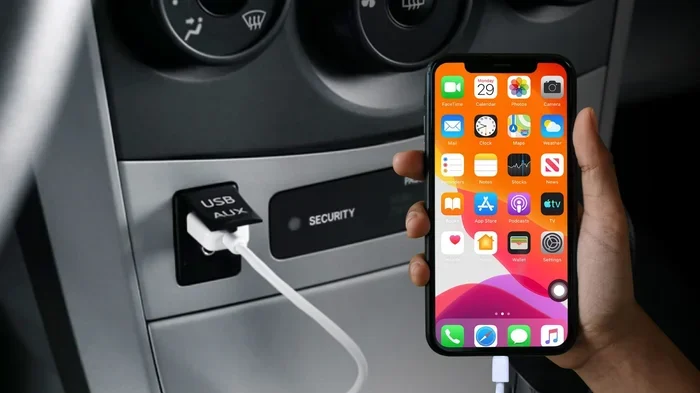
Bluetooth is convenient, but it is not the only way to connect your iPhone to your car. A simple USB cable can provide a wired connection for music, charging, and CarPlay. If Bluetooth keeps failing, plug in your iPhone with a Lightning or USB-C cable. Many car stereos will automatically recognize a connected iPhone and switch to the wired mode. This is a great backup plan for when wireless iPhone car connection is not working.
Update Your Car Stereo Firmware
Just like your iPhone, your car stereo has firmware that can be updated. Check your car manufacturer’s website or owner manual for firmware update instructions. Some cars allow updates through a USB drive. Others connect to the manufacturer’s app for over-the-air updates. Keeping your car stereo firmware current ensures the best compatibility with your iPhone and the latest wireless CarPlay features.
Quick Tips Summary
- Always turn on Bluetooth on both your iPhone and car before trying to pair.
- Keep your iPhone within 30 feet of your car stereo during pairing.
- Forget old paired devices regularly to avoid conflicts.
- Update iOS and car firmware to prevent compatibility issues.
- Use a USB cable as a reliable backup when Bluetooth fails.
- Enable contact syncing for hands-free calling convenience.
- Restart both devices first whenever you face a connection problem.
Conclusion
So there you have it. How Do I Get My iPhone to Connect to My Car Bluetooth is a question with a clear and simple answer. You now know the exact steps to pair your iPhone with your car stereo. You know how to fix common problems when the connection fails. And you know how to get the most out of your iPhone car Bluetooth setup. From hands-free calling to streaming music and using Apple CarPlay, the possibilities are endless once your devices are connected.
Remember that technology is not always perfect. Occasional connection hiccups happen to everyone. But with the troubleshooting tips in this guide, you can handle almost any issue on your own. Keep your software updated, clean up old pairings, and do not be afraid to use a USB cable when needed. A strong iPhone car integration makes every drive safer, more convenient, and more enjoyable. Put these tips into practice today and enjoy a seamless connection every time you get behind the wheel.
Frequently Asked Questions
Why won’t my iPhone connect to my car Bluetooth even after pairing?
This usually happens because of a software glitch or an outdated Bluetooth cache. Try toggling Bluetooth off and back on, or restart both devices. If the problem persists, go to your iPhone Bluetooth settings, tap the info icon next to your car, and select Forget This Device. Then re-pair from scratch.
Can I connect my iPhone to multiple cars via Bluetooth?
Yes, your iPhone can remember and connect to multiple cars. However, it will only connect to one car at a time. When you get into a different car, your iPhone should automatically connect to the nearest paired car if Bluetooth is turned on.
How do I know if my car supports Apple CarPlay?
Check your car’s owner manual or visit the manufacturer’s website. Most cars made after 2016 support CarPlay, either built-in or through an aftermarket head unit. Look for the CarPlay icon on your car’s infotainment screen when your iPhone is connected.
Why does my iPhone Bluetooth keep disconnecting from my car?
Frequent disconnections are often caused by interference, outdated software, or too many paired devices. Restart both devices, update your iPhone and car firmware, and remove old pairings. Keeping your iPhone close to the car stereo also helps maintain a stable connection.
Do I need a USB cable if my car has Bluetooth?
No, Bluetooth is wireless and works perfectly for calls and music. However, a USB cable provides a more stable connection for Apple CarPlay and charges your iPhone at the same time. It is a great backup option when Bluetooth is acting up.
How long does it take to pair an iPhone with a car for the first time?
The initial pairing usually takes less than two minutes. Once paired, your iPhone and car will reconnect automatically in seconds every time you get in the car. The first time is the only time you need to go through the full setup process.
=== META DESCRIPTION ===
Learn how to get your iPhone to connect to your car Bluetooth step by step. Fix pairing issues and enjoy hands-free calling and CarPlay today!