Why Wont My Phone Connect to Sync in My Car Fix
When your phone won’t connect to sync in your car, it can ruin your drive. This guide covers Bluetooth problems, USB issues, software glitches, and compatibility mismatches that cause sync failures. You will learn simple step-by-step fixes to get your phone paired and working again quickly.
Key Takeaways
- Restart both devices first: A simple reboot often fixes Bluetooth and sync connection problems.
- Check for software updates: Outdated phone or car firmware is one of the top reasons sync fails.
- Delete old paired devices: Too many saved connections can cause pairing conflicts and sync issues.
- Use the right cable: A faulty or low-quality USB cable is a common cause of connection failure.
- Verify compatibility: Not all phones work with all car infotainment systems, so check device compatibility first.
- Reset network settings: This clears deep Bluetooth cache problems that normal restarts cannot fix.
- Consult your vehicle manual: Your car manual has specific sync steps that many people overlook.
📑 Table of Contents
- Why Won’t My Phone Connect to Sync in My Car?
- Bluetooth Pairing Problems and How to Fix Them
- USB Connection Issues That Block Your Sync
- Software and Firmware Problems to Watch For
- Compatibility Between Your Phone and Car System
- Step-by-Step Fixes to Get Your Phone Syncing
- Quick Tips to Prevent Future Sync Problems
- Common Mistakes People Make When Troubleshooting Sync Issues
- Expert Insights on Car Phone Sync
- Key Takeaways
- Conclusion
Why Won’t My Phone Connect to Sync in My Car?
You hop in the car. You grab your phone. You want to play music or take a call. But nothing happens. Your phone connect to sync in car attempt fails again. This is frustrating. It happens to almost everyone at some point.
The good news is that most sync problems have simple fixes. You do not need to be a tech expert. In this guide, we will walk through every common reason your phone won’t connect to sync in car and give you clear steps to solve each one. Let us get you back on the road with music playing and calls flowing.
Whether you use Android Auto, Apple CarPlay, or basic Bluetooth, the connection process can fail for many reasons. Understanding why is the first step to fixing it. So let us dive in and troubleshoot together.
What Does It Mean When Your Phone Syncs with Your Car?
Syncing means your phone and car share data wirelessly or through a cable. This can include music, calls, texts, and navigation. The car’s infotainment system acts as a bridge. It talks to your smartphone using Bluetooth or a USB data transfer line.
When sync works, you get hands-free calling, music streaming, and voice commands. When it breaks, you lose all of that. Your phone becomes just a device in your pocket. That is why fixing sync issues matters so much.
How Common Are Phone Sync Problems?
Very common. Studies show that Bluetooth connection issues are among the top car tech complaints. Almost every car owner faces this at least once. The good news is that most fixes take less than five minutes. You just need to know what to try first.
Bluetooth Pairing Problems and How to Fix Them
Bluetooth is the most common way to connect phone to car. But it is also the most likely to fail. Let us look at the main Bluetooth problems and how to solve them.
Why Won’t My Phone Find the Car Bluetooth?
If your phone cannot see your car’s Bluetooth name, the problem is usually one of three things. First, Bluetooth might be turned off on one device. Second, your car might not be in pairing mode. Third, the wireless connection range might be too far.
Here is what to do. Make sure Bluetooth is on in your phone settings. Then go to your car’s audio or settings menu. Look for the option to make the car visible. On most cars, you hold the Bluetooth button on the steering wheel for a few seconds. The car name should then appear on your phone screen.
Pairing Keeps Failing After Entering the PIN
Sometimes you get a PIN on your car screen. You type it into your phone. Then it fails. This is annoying but fixable. The PIN might have expired. Or the Bluetooth pairing cache on your phone might be corrupted.
Try this. Go to your phone’s Bluetooth settings. Find your car name. Tap forget or delete. Then start the pairing process fresh. This clears old data and lets both devices start clean.
Phone Connects but No Sound Comes Through
Your phone shows as connected. But you hear nothing. This is a different problem than a full sync failure. It usually means the audio profile is not set correctly. Your phone might be connected for calls only but not for music.
Go to your Bluetooth settings on your phone. Tap the settings gear next to your car. Make sure media audio and call audio are both turned on. This one fix solves the problem for many drivers.
USB Connection Issues That Block Your Sync
Not everyone uses Bluetooth. Many drivers prefer a USB cable for a stable data transfer link. But USB connections have their own set of problems. Let us go through them.
The Car Does Not Recognize the Phone via USB
You plug in your cable. Nothing happens. The car screen stays blank. This is one of the most common sync issues people face. The first thing to check is the cable itself.
Not all USB cables are the same. Many cables only charge your phone. They do not carry data. If you want to phone connect to sync in car through USB, you need a cable that supports data transfer. Try a different cable. This fixes the problem more often than you might think.
What USB Port Should You Use?
Many cars have more than one USB port. Some are for charging only. Others are for data. Check your vehicle manual to find the right port. It might be labeled with a USB symbol or a data icon.
If you plug into the wrong port, your phone will charge but will not sync. Try the other port. If that does not work, try a different cable. This two-step check solves most USB sync problems.
Phone Keeps Disconnecting from USB
A loose connection is the usual culprit here. The cable might not be fully inserted. Or the port might be dirty. Dust and lint can build up inside USB ports over time.
Unplug the cable. Look at both the phone end and the car end. Check for bent pins or debris. Clean the port gently with a toothpick or compressed air. Then plug it back in firmly. A solid connection makes all the difference.
Software and Firmware Problems to Watch For
Software issues are sneaky. They do not always look like a software problem at first. But outdated software is a leading cause of sync failures.
Is Your Phone Software Up to Date?
Phone updates fix bugs. They also improve how your phone talks to car systems. An outdated phone operating system can cause your phone connect to sync in car attempts to fail.
Go to your phone settings. Look for software update or system update. Install any pending updates. Restart your phone. Then try syncing again. This simple step often solves problems that seem very confusing.
Does Your Car Need a Firmware Update?
Cars need updates too. The infotainment system runs on software. That software can become outdated. Car makers release firmware updates to fix bugs and add features.
Check your car maker’s website or app. Some newer cars can update themselves over Wi-Fi. Others need a visit to the dealer. Either way, keeping your car software current helps prevent sync issues.
App Conflicts Can Cause Sync Failures
Sometimes the problem is not your phone or your car. It is an app. Certain apps can interfere with Bluetooth connections. Music apps, VPN apps, and battery savers are common troublemakers.
Try closing all background apps before you sync. If that works, look at which app was causing the issue. You might need to adjust settings or uninstall a problematic app. This is an easy fix that many people overlook.
Compatibility Between Your Phone and Car System
Not every phone works perfectly with every car. Compatibility matters more than most people realize. Let us look at the key compatibility factors.
Does Your Phone Support the Right Bluetooth Profiles?
Bluetooth has different profiles. The most important ones for car sync are A2DP for music and HFP for calls. If your phone does not support one of these profiles, certain features will not work.
Most modern phones support all standard profiles. But older phones or very budget phones might be missing some. Check your phone specifications online if you suspect this is the issue. Knowing your device compatibility saves a lot of frustration.
Android Auto vs Apple CarPlay: Which Do You Need?
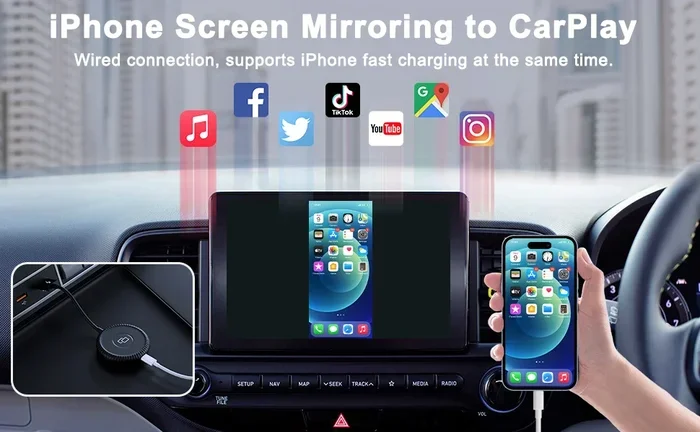
If your car supports Android Auto or Apple CarPlay, you need the right phone. Android Auto works with Android phones. Apple CarPlay works with iPhones. You cannot mix them.
Some cars support both. Some support only one. Check your car manual or the car maker’s website. If your car supports phone mirroring, make sure you are using the correct system for your phone type.
Older Cars and Newer Phones: A Tough Match
Older car audio systems may not support newer phone features. If you have a phone from the last two years and a car from five or more years ago, there might be a gap. The car’s Bluetooth chip might be too old to handle newer smartphone pairing protocols.
In this case, a Bluetooth adapter or FM transmitter can help. These small devices plug into your car’s audio system and create a new connection point. They are affordable and easy to install.
Step-by-Step Fixes to Get Your Phone Syncing
Now let us put it all together. Here is a clear troubleshooting path you can follow every time your phone won’t connect to sync in car.
Step 1: Restart Both Devices
Turn off your car. Turn off your phone. Wait 30 seconds. Turn the car back on. Turn the phone back on. This clears temporary glitches in both systems. It is the easiest and most effective first step.
Step 2: Delete Old Paired Devices
Go to your phone Bluetooth settings. Remove your car from the list of saved devices. Also clear your car Bluetooth memory. Then start fresh. This solves many stubborn connection problems.
Step 3: Check Bluetooth and USB Settings
Make sure Bluetooth is on. Make sure your car is visible. If using USB, try a different cable and a different port. Check that both audio and data options are enabled on your phone.
Step 4: Update Software
Update your phone. Check your car for firmware updates. Install any pending updates. Restart both devices after updating.
Step 5: Reset Network Settings
If nothing else works, reset your phone network settings. This clears all Bluetooth pairings and Wi-Fi connections. You will need to reconnect everything. But it fixes deep connection problems that other steps cannot touch.
Step 6: Consult a Professional
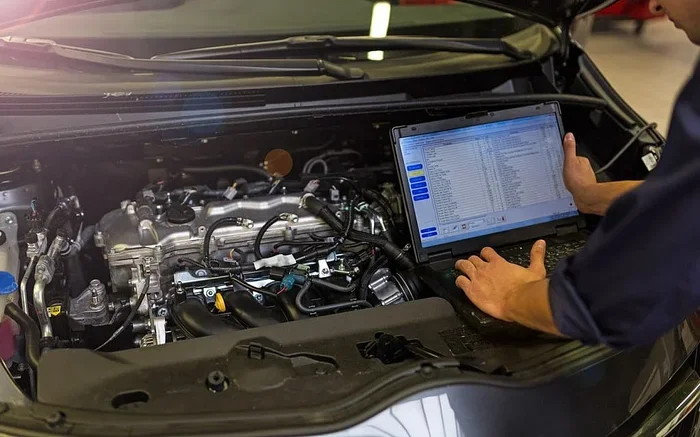
If you have tried everything, it might be time for help. Visit your car dealer or a trusted auto electronics shop. They have diagnostic tools that can read deeper system errors. Sometimes a hardware issue needs professional attention.
Quick Tips to Prevent Future Sync Problems
Prevention is always better than fixing. Here are simple habits that keep your phone connect to sync in car working smoothly.
- Keep your phone and car software updated at all times.
- Use a high-quality USB cable from a trusted brand.
- Clean your USB ports regularly to prevent dust buildup.
- Do not pair too many devices at once. Keep your car Bluetooth list short.
- Restart your phone weekly to clear cached connection data.
- Store your phone in a consistent spot in the car for stable Bluetooth range.
These small habits take almost no time. But they save you from hours of frustration. A little prevention goes a long way with car sync systems.
Common Mistakes People Make When Troubleshooting Sync Issues
We all make mistakes when troubleshooting. Here are the ones to avoid.
- Skipping the reboot: Many people jump to complex fixes before trying a simple restart. Always restart first.
- Using a cheap cable: A $2 cable might charge your phone but not transfer data. Invest in a good one.
- Ignoring car updates: People update their phones but forget about car software. Both matter.
- Forgetting to delete old pairings: Old saved devices can conflict with new ones. Clear them regularly.
- Assuming it is a hardware problem too fast: Most sync issues are software or settings related. Try all software fixes first.
Avoiding these mistakes will save you time and money. You will also fix the problem faster.
Expert Insights on Car Phone Sync
Auto tech experts agree on a few key points about car sync. First, Bluetooth range matters. Keep your phone close to the car’s antenna. That is usually near the center console or rearview mirror. Second, interference is real. Other Bluetooth devices, USB hubs, and even phone cases can weaken the signal.
Third, patience pays off. Some sync processes take longer than others. Wait at least 30 seconds after pairing before trying to play music or make a call. Rushing the process is a common reason people think the connection failed when it actually succeeded.
Finally, read your vehicle manual. It sounds boring. But it contains specific instructions for your exact car model. Those instructions often include steps that generic guides do not mention.
Key Takeaways
- Restart both devices first: A simple reboot often fixes Bluetooth and sync connection problems.
- Check for software updates: Outdated phone or car firmware is one of the top reasons sync fails.
- Delete old paired devices: Too many saved connections can cause pairing conflicts and sync issues.
- Use the right cable: A faulty or low-quality USB cable is a common cause of connection failure.
- Verify compatibility: Not all phones work with all car infotainment systems, so check device compatibility first.
- Reset network settings: This clears deep Bluetooth cache problems that normal restarts cannot fix.
- Consult your vehicle manual: Your car manual has specific sync steps that many people overlook.
Conclusion
Dealing with a phone won’t connect to sync in car situation is frustrating. But it is almost always fixable. The most common causes are simple: Bluetooth settings, USB cables, outdated software, or compatibility issues. With the steps in this guide, you can troubleshoot and solve most sync problems on your own.
Start with the basics. Restart both devices. Check your cables. Update your software. Delete old pairings and start fresh. These steps solve the vast majority of sync issues. If they do not work, dig deeper into software updates and network resets.
Remember that prevention is your best tool. Keep your devices updated. Use quality cables. Clean your ports. These small habits keep your phone connect to sync in car experience smooth and reliable every time you drive.
You do not have to live with a broken sync connection. Take action today. Try the fixes in this guide. Get back to enjoying hands-free calls, music streaming, and navigation on the road. Your driving experience will feel better the moment your phone syncs again.
Frequently Asked Questions
Why does my phone keep disconnecting from my car sync?
This usually happens because of a weak Bluetooth signal or an outdated software version on either your phone or your car. Try deleting the old pairing and creating a fresh connection. Also check that your phone is not in battery-saving mode, as this can limit Bluetooth performance.
Can I use my phone while it is connected to my car?
Yes, you can. In fact, that is the point of sync. You can make calls, stream music, and use navigation apps while your phone is connected. Just avoid complex tasks that take your eyes off the road. Use voice commands whenever possible for safer driving.
Why does my car not show my phone in the Bluetooth list?
Your car might not be in pairing mode. Make sure Bluetooth is turned on in your car settings and that the car is set to be discoverable. Also check that your phone Bluetooth is on and that you are within range. If the problem persists, restart both devices and try again.
Do I need a special cable for phone sync in my car?
For USB sync, yes. You need a cable that supports data transfer, not just charging. Many cheap cables only charge your phone. Look for cables labeled as data-capable or buy from trusted brands. For wireless sync, a standard Bluetooth connection works without any cable at all.
Will updating my phone fix the sync connection?
It can. Phone updates often include bug fixes for Bluetooth and connection problems. Check for software updates in your phone settings and install any that are available. Also check your car for firmware updates, as outdated car software can cause the same issues.
Is it safe to use phone sync while driving?
Yes, it is designed to be safe. Hands-free calling and voice commands reduce distractions. However, avoid tapping your phone screen while driving. Set up your sync connection before you start the car. Use voice controls to interact with your phone while on the road.