How Do I Force a Bluetooth Device Into Pairing Mode
Forcing a Bluetooth device into pairing mode is the fastest way to fix connection problems and get your car audio system working again. Whether you are dealing with a stubborn smartphone, a car infotainment screen, or a wireless headset, this guide walks you through every method. You will learn the exact steps to force pairing mode, troubleshoot common failures, and keep your Bluetooth connection strong on the road.
Forcing a Bluetooth device into pairing mode is the single most important skill every car owner should master. Whether your car Bluetooth keeps dropping connections or your new wireless headset refuses to link, knowing how to trigger pairing mode solves the problem fast. This guide breaks down every method in plain, simple language so you can get back on the road with crystal-clear audio and hands-free calling in minutes.
You will discover step-by-step instructions for phones, tablets, laptops, and car infotainment systems. We also cover the most common reasons Bluetooth pairing fails and how to fix them. By the end, you will feel confident forcing any Bluetooth device into pairing mode whenever you need to.
Bluetooth connectivity is not always plug-and-play. Sometimes devices hide their pairing settings deep inside menus. Other times, an old connection blocks a new one. Understanding how Bluetooth pairing works gives you the power to fix these issues yourself. No more frustration. No more guessing. Just clear, actionable steps that work.
The tips in this article apply to virtually every Bluetooth device on the market today. From basic car stereos to advanced wireless earbuds, the core principles stay the same. Let us dive in and get your devices talking to each other again.
Key Takeaways
- Know your device: Every Bluetooth device has a unique way to enter pairing mode, and knowing the method for your specific gadget saves time.
- Reset first: A simple reset often fixes Bluetooth pairing problems before you even try forcing pairing mode.
- Car systems are different: Car infotainment units have their own pairing procedures that differ from phones and tablets.
- Distance matters: Keeping your Bluetooth device within range during pairing prevents connection failures.
- Avoid common mistakes: Forgetting to turn off existing connections is the number one reason pairing mode fails.
- Seek help when needed: If all else fails, a professional can diagnose hardware issues with your Bluetooth device.
📑 Table of Contents
- What Is Bluetooth Pairing Mode and Why Do You Need It
- How to Force a Bluetooth Device Into Pairing Mode (Step by Step)
- Why Won’t Your Bluetooth Device Enter Pairing Mode
- Troubleshooting Bluetooth Connection Problems in Your Car
- Expert Tips and Quick Fixes for Better Bluetooth Pairing
- When to Seek Professional Help for Bluetooth Connectivity
- Conclusion
What Is Bluetooth Pairing Mode and Why Do You Need It
Bluetooth pairing mode is a special state where your device becomes visible to other Bluetooth devices nearby. Think of it like ringing a doorbell. When your device is in pairing mode, it broadcasts a signal saying, “Hey, I am here. Come connect.” Without entering this mode, most Bluetooth devices stay hidden and silent.
How Bluetooth Pairing Works
When two Bluetooth devices connect for the first time, they exchange security codes. This process is called pairing. Once paired, the devices remember each other and reconnect automatically in the future. But sometimes that memory gets corrupted. Sometimes a new device needs to replace an old one. That is when you need to force your Bluetooth device back into pairing mode.
The Bluetooth connection process relies on radio waves. These waves have a typical range of about 30 feet. In a car, this range is usually more than enough. But walls, metal bodies, and electronic interference can weaken the signal. Keeping your devices close during the pairing process helps a lot.
Why Forcing Pairing Mode Is Sometimes Necessary
Not all devices make it easy to enter pairing mode. Some hide the option behind multiple menu layers. Others require you to hold down a physical button for several seconds. When your Bluetooth device refuses to connect, forcing it into pairing mode bypasses the usual shortcuts and puts the device in a discoverable state.
This is especially common with car audio systems. Many drivers install a new car Bluetooth adapter or upgrade their infotainment system only to find the pairing process is not intuitive. Forcing pairing mode gives you direct control over the connection process.
How to Force a Bluetooth Device Into Pairing Mode (Step by Step)
The exact steps depend on what kind of device you are using. Below, we cover the most common scenarios. Follow the section that matches your device, and you will be paired up in no time.
Forcing Pairing Mode on Smartphones
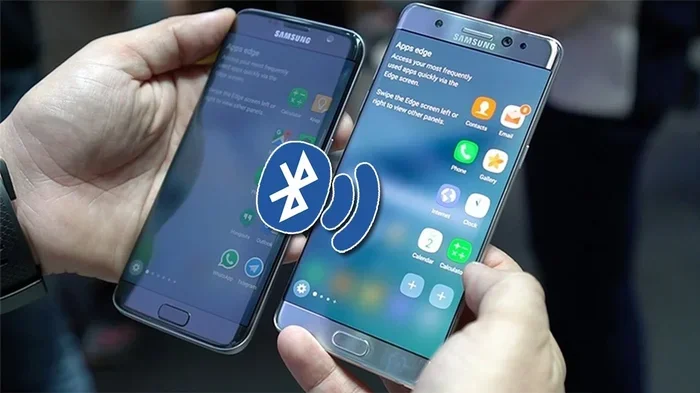
Both Android and iPhone devices have slightly different ways to enter Bluetooth pairing mode. Here is how to do it on each platform.
For Android phones:
- Open the Settings app.
- Tap on Bluetooth or Connections depending on your phone model.
- Toggle Bluetooth off and then back on.
- Tap on Pair new device or Scan for devices.
- Your phone will now broadcast a device discovery signal.
For iPhones:
- Open the Settings app.
- Tap Bluetooth.
- Toggle Bluetooth off, wait 10 seconds, then toggle it back on.
- Your iPhone will automatically start scanning for nearby devices.
- Tap on the device you want to pair with.
Quick Tip: If your phone still does not show the option, restart it completely. A fresh reboot clears temporary glitches and often fixes Bluetooth troubleshooting issues instantly.
Forcing Pairing Mode on Tablets and Laptops
Tablets and laptops follow similar steps to smartphones. On most Windows laptops, go to Settings > Bluetooth & devices and toggle Bluetooth off and on. Click Add device to force your laptop into a wireless connection discovery state.
On iPads and Android tablets, the process mirrors the smartphone steps. Open Settings, find Bluetooth, and select Pair new device. Some tablets also have a physical Bluetooth toggle in the quick settings panel. Swipe down from the top of your screen and look for the Bluetooth icon.
For MacBooks, click the Apple menu, open System Settings, and select Bluetooth. Click Turn Bluetooth On if it is off, then click Connect next to the device you want to pair. Your Mac will enter a discovery mode automatically.
Forcing Pairing Mode on Car Audio Systems and Infotainment Units
Car Bluetooth systems can be the trickiest to force into pairing mode. Unlike phones, car stereos do not always have a clear on-screen prompt. Here is how to handle the most common car audio setups.
For factory car infotainment systems:
- Start your car and turn on the infotainment screen.
- Navigate to Settings or Phone on the touchscreen.
- Select Bluetooth or Bluetooth Settings.
- Choose Add New Device or Search for Devices.
- The system will now broadcast a pairing mode signal.
For aftermarket Bluetooth adapters:
- Locate the power button on your adapter.
- Press and hold the button for 5 to 7 seconds.
- The LED light should start flashing, usually blue or red.
- A flashing light means the adapter is in pairing mode.
- Now search for the device from your phone.
Expert Insight: Many car owners do not realize that their factory system already has a paired device list that is full. Deleting old paired devices frees up slots and forces the system to refresh its Bluetooth settings. This simple step solves the problem more often than people think.
| Device Type | Pairing Mode Method | Typical Indicator |
|---|---|---|
| Android Phone | Settings > Bluetooth > Pair New Device | Scanning animation on screen |
| iPhone | Settings > Bluetooth > Auto-Scan | Bluetooth icon in status bar |
| Windows Laptop | Settings > Bluetooth > Add Device | “Adding a device” message |
| Car Infotainment | Settings > Bluetooth > Add New Device | Searching or pairing on-screen |
| Aftermarket Adapter | Hold power button 5-7 seconds | Flashing LED light |
| Wireless Earbuds | Hold case button 3-5 seconds | LED flashes white or blue |
Why Won’t Your Bluetooth Device Enter Pairing Mode
Sometimes you follow every step correctly, and your Bluetooth device still refuses to enter pairing mode. This is frustrating, but there is almost always a logical reason. Let us look at the most common causes.
Common Reasons Bluetooth Pairing Fails
Battery level is too low. Many Bluetooth devices will not enter pairing mode when the battery is critically low. Charge your device fully before trying again. A low battery can also cause weak Bluetooth range and intermittent Bluetooth connectivity issues.
The device is already connected to something else. Bluetooth devices can only maintain a limited number of active connections at once. If your car stereo is already paired with your passenger’s phone, your phone might not be able to force a new Bluetooth connection. Disconnect from the current device first.
Firmware is outdated. Just like your phone needs software updates, Bluetooth adapters and car stereos need firmware updates too. An outdated infotainment system can cause compatibility issues that prevent pairing mode from activating. Check the manufacturer’s website for updates.
Physical buttons are stuck or unresponsive. If your device relies on a physical button to enter pairing mode, the button itself might be dirty or damaged. Clean it gently with a dry cloth and try again.
When the Device Is Already Connected to Another Source
This is the sneaky problem that catches everyone off guard. Your Bluetooth device might still be connected to a device you forgot about. Maybe your car stereo paired with your phone last week, and now it is trying to reconnect automatically instead of entering fresh pairing mode.
The fix is simple. Go to the Bluetooth settings on the device that is already connected and choose Forget This Device or Unpair. Then try forcing pairing mode again from scratch. This clears the old connection and forces the device to start fresh.
Troubleshooting Bluetooth Connection Problems in Your Car
Car Bluetooth issues are uniquely annoying because they happen when you are trying to drive. Hands-free calling and Bluetooth audio streaming are not just conveniences. They are safety features. When your car hands-free system stops working, it affects your entire driving experience.
Quick Fixes for Car Bluetooth Issues
Turn your car off and back on. This resets the infotainment system and clears temporary glitches. It is the car equivalent of turning your phone off and on again. Wait 30 seconds before restarting.
Delete all old paired devices. Over time, car Bluetooth systems accumulate a long list of paired devices. This clutters the memory and slows down the Bluetooth connection process. Go into your car settings and remove every old device. Then pair fresh.
Move your phone closer to the car antenna. The Bluetooth antenna in most cars is located near the rearview mirror or inside the roof lining. Placing your phone on the passenger seat or center console during pairing improves signal strength.
Check for interference from other electronics. USB chargers, dash cams, and even phone cases with metal plates can interfere with wireless connection signals. Temporarily unplug other devices and try pairing again.
When to Reset Your Car Bluetooth System
If quick fixes do not work, a full reset might be necessary. A Bluetooth reset wipes all paired device memory and restores the system to factory defaults. On most car systems, you can find this option under Settings > Bluetooth > Reset or Factory Reset.
Be aware that a full reset will also erase your saved radio stations and other personalized settings. Make sure you know how to restore those before you reset. After the reset, your car system will be in a clean state and ready to accept a new Bluetooth pairing.
Expert Tips and Quick Fixes for Better Bluetooth Pairing
Over the years, car owners and tech experts have gathered a treasure trove of practical tips that make Bluetooth pairing smoother. Here are the best ones we have found.
Quick Tips Section
- Always start with a charged device. A fully charged phone or adapter pairs faster and more reliably than a low-battery one.
- Keep it close. Place your phone within 3 feet of your car’s infotainment unit during the initial pairing process.
- Turn off other Bluetooth devices. If you have a smartwatch, earbuds, or fitness tracker nearby, turn off their Bluetooth temporarily. Too many active signals create confusion.
- Use the manufacturer’s app. Many car brands and Bluetooth adapter brands have companion apps that guide you through the pairing process step by step.
- Check for hidden settings. Some Android phones have a Bluetooth visibility timeout setting. Set it to “Always visible” if you are having trouble.
Common Mistakes to Avoid
Do not skip the unpairing step. Many people try to pair a new device without removing the old one first. This creates conflicts and is the most common reason for Bluetooth not connecting issues.
Do not hold the pairing button too briefly. Most devices require a 5 to 7 second hold. A quick tap will not work. Count slowly and hold steady.
Do not pair in a crowded area. If you are in a parking lot with dozens of other cars, your device might pick up Bluetooth signals from neighboring vehicles. This can confuse the pairing process. Park away from other cars if possible.
Do not ignore error messages. If your screen shows a specific error code, search for it online. Manufacturers often list solutions for specific error codes that generic troubleshooting cannot fix.
When to Seek Professional Help for Bluetooth Connectivity
Most Bluetooth pairing problems can be solved at home with the steps in this guide. But sometimes the issue is deeper than a simple settings fix. If you have tried everything and your Bluetooth device still will not enter pairing mode, it might be time to call in a professional.
Signs that you need expert help include a Bluetooth adapter that physically will not power on, a car infotainment system that freezes during the pairing process, or repeated failure even after a full factory reset. These could indicate a hardware problem that no software fix can resolve.
A certified car audio specialist can test your car Bluetooth system with professional diagnostic tools. They can identify faulty wiring, defective antennas, or compatibility issues between your device and your car system. In most cases, the fix is quick and affordable. But catching it early prevents bigger problems down the road.
Conclusion
Forcing a Bluetooth device into pairing mode is a simple skill that saves you time, frustration, and money. Whether you are pairing a new phone with your car stereo, connecting wireless earbuds to your tablet, or troubleshooting a stubborn Bluetooth connection, the steps in this guide cover every scenario.
Start with the basics. Charge your device, turn Bluetooth off and on, and remove old paired connections. If that does not work, force pairing mode using the specific method for your device type. Use the quick tips and avoid the common mistakes to keep your Bluetooth connectivity strong and reliable.
Remember, most Bluetooth problems are temporary and solvable. With a little patience and the right knowledge, you can force any device into pairing mode and get back to enjoying hands-free calling, music streaming, and seamless wireless connection on every drive. Keep this guide bookmarked for the next time your Bluetooth device gives you trouble. You will be glad you did.
Frequently Asked Questions
How Do I Know If My Bluetooth Device Is in Pairing Mode?
Most devices give you a visual or audio signal when they enter pairing mode. Flashing LED lights, a voice prompt saying “Pairing mode activated,” or a message on the screen are all common indicators. If you see any of these, your device is ready to be discovered by other Bluetooth devices nearby.
Why Won’t My Car Bluetooth Find My Phone?
This usually happens because your phone is not in device discovery mode, or your car system has a full paired device list. Try turning Bluetooth off and on on your phone, deleting old paired devices from your car system, and moving your phone closer to the car antenna. These steps resolve the issue in most cases.
Can I Force a Bluetooth Device Into Pairing Mode Without Any Buttons?
Yes. Most modern devices allow you to enter pairing mode through the settings menu. On smartphones, simply go to Bluetooth settings and tap Pair new device. On car infotainment systems, navigate to Settings > Bluetooth > Add New Device. No physical buttons are needed for these methods.
How Long Does a Bluetooth Device Stay in Pairing Mode?
Most Bluetooth devices stay in pairing mode for about 2 to 5 minutes. If you do not complete the connection within that window, the device automatically exits pairing mode and goes back to its normal state. If this happens, simply repeat the process to re-enter pairing mode.
What Should I Do If My Bluetooth Keeps Disconnecting After Pairing?
Intermittent disconnections are often caused by distance, interference, or low battery. Move your devices closer together, remove other electronics that might be causing interference, and make sure both devices are fully charged. If the problem persists, reset the Bluetooth connection by unpairing and pairing again from scratch.
Is It Safe to Force a Bluetooth Device Into Pairing Mode?
Absolutely. Entering pairing mode is a normal and safe function built into every Bluetooth device. It does not erase any data or change your device settings. The only thing that happens is your device becomes temporarily visible to nearby Bluetooth devices so they can connect. It is a standard and completely safe process.